Video
AI dubbing
What AI dubbing does, who can use it, the voice-cloning consent it requires, the languages offered, how students switch audio, and how it's charged.
AI dubbing clones each speaker's voice and dubs a lesson's video into the languages you pick. The result is a new version of the video with one audio track per language, which you preview and publish like any replacement video. It's an add-on billed by use, available on the Plus plan.
Before you start
- Plan: AI dubbing is part of the Plus plan. On other plans, the AI dubbing section of Settings → Plan & billing says "AI dubbing is part of the Plus plan." See Plans and usage.
- Turned on: an owner has to switch it on (below).
- Owners only: only workspace owners can start a dub, because it's billed. Editors see "Ask a workspace owner to dub this lesson: it's billed by use."
- Consent: everyone who speaks in the video must have agreed to have their voice cloned. You confirm this every time you start a dub.
- A live video: the lesson needs a live, ready video of 60 minutes or less. Quiz lessons can't be dubbed.
Turn on AI dubbing
- Go to Settings → Plan & billing, section AI dubbing.
- Check Allow AI dubbing.
- Set the Monthly cap in dollars.
- Click Save dubbing settings.
Dub a lesson
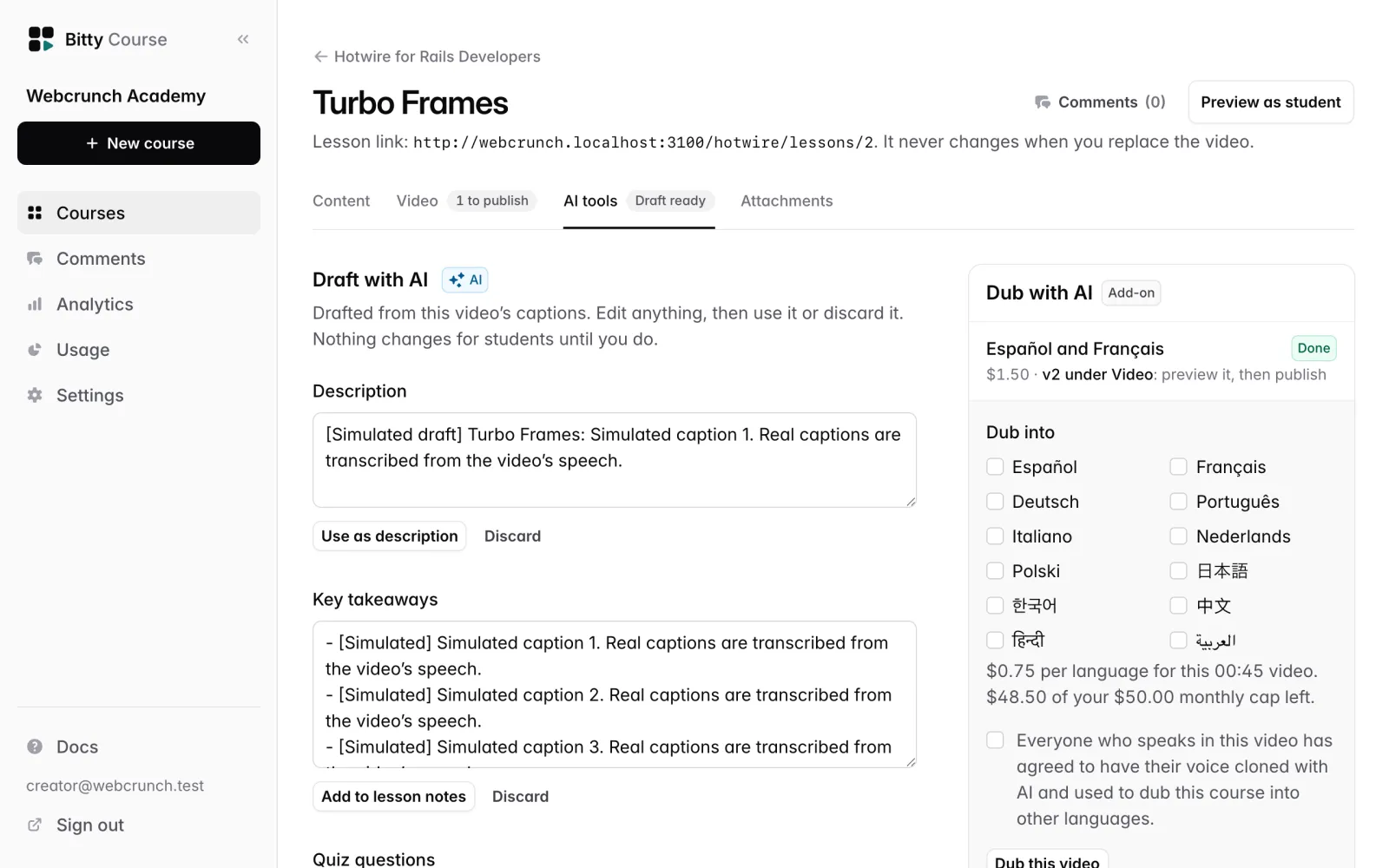
- Open the lesson and go to its AI tools tab.
- In Dub with AI, under Dub into, check the languages you want. The language spoken in the video isn't offered.
- Check the box confirming: "Everyone who speaks in this video has agreed to have their voice cloned with AI and used to dub this course into other languages."
- Click Dub this video.
Under the language list you see what one language costs for this video and how much of your monthly cap is left.
Dubbing usually takes a few minutes per language. The Dub with AI box lists recent dubs with their status: Dubbing, Finishing, Done or Failed. The AI tools tab shows "Dubbing" while one is in progress. Only one dub per lesson can run at a time.
Preview and publish the dubbed version
When a dub is Done, a new version appears on the lesson's Video tab, marked AI-dubbed with its languages (for example "Español and Deutsch · from v2"). Students don't see it yet.
- Click Preview on the new version and listen to each language. AI voices can mispronounce names, jargon and code.
- Click Publish on that version (for example Publish v3) and confirm.
The dubbed version is a normal version: the lesson link stays the same, you can roll back to the original, and the usual retention rules apply. See Video versions.
The dubbed version starts with a copy of the original's captions and chapters, because the timeline is the same.
Languages
You can dub into: Español, Français, Deutsch, Português, Italiano, Nederlands, Polski, 日本語 (Japanese), 한국어 (Korean), 中文 (Chinese), हिन्दी (Hindi), العربية (Arabic) and English.
The spoken language is taken from the video's captions. If the video has no captions, Bitty Course doesn't know the spoken language, every language is offered, and the original audio track is labeled "Original".
What students see and hear
- A dubbed video has an Audio choice in the player. Students pick the original or one of the dubbed languages.
- The original track is labeled with its language and "(original)", for example "English (original)". Dubbed tracks are always labeled AI-dubbed, for example "Español (AI-dubbed)".
- Switching audio continues from the same moment in the video.
- The player remembers the student's audio language in that browser and uses it for other dubbed lessons.
- Captions work as before. Dubbing doesn't translate captions; for that, see Captions and translations.
Cost and the monthly cap
AI dubbing is billed by use: a price per minute of video, per language, billed by the second. The current price is shown in the AI dubbing section of Settings → Plan & billing, and the cost for a specific video is shown before you start it.
- The charge is reserved when you start a dub and charged only when the dubbed version is finished. A failed dub costs nothing.
- A dub that would go past this month's cap doesn't start. You see how much is left and can pick fewer languages or raise the cap.
- Months follow the calendar month in UTC.
- What you've spent this month is shown in Settings → Plan & billing and on the Usage page.
Storage
The dubbed version is a new video and counts toward your plan's video storage, like any other version. If your storage is full when the dub finishes, the dubbed version isn't saved and nothing is charged. See Plans and usage.
Limits
- Videos up to 60 minutes.
- Only the lesson's live video can be dubbed.
- A version that is already dubbed can't be dubbed again. To add languages later, make the original version live again, dub it into all the languages you want, then publish the new dubbed version.
- If a dub doesn't finish within 3 hours, it fails and nothing is charged. Try again.
- Speech is dubbed; text shown on screen in the video isn't changed.