Workspace
Signing in
How creators, teammates and students sign in with emailed codes, links or passwords, how password reset works, and how sign-in differs between the studio and course sites.
Bitty Course signs people in with a 6-digit code sent by email. Passwords are optional. The same screens serve the studio, where you and your team work, and your course site, where students watch, but each address keeps its own sign-in.
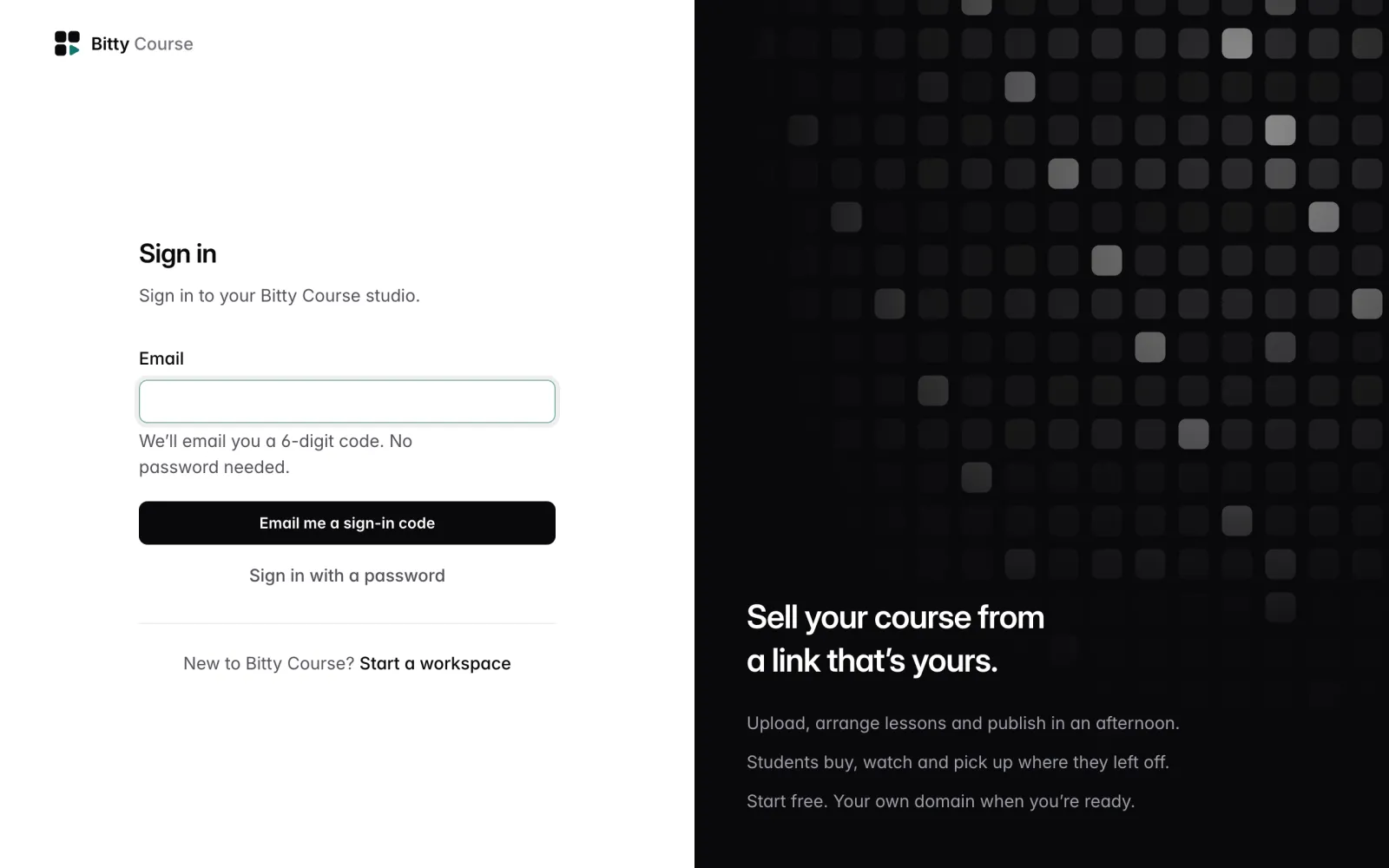
Sign in with an emailed code
- On the sign-in page, enter your Email and click Email me a sign-in code.
- Check your email for "123456 is your sign-in code for [name]".
- Type the code into Sign-in code and click Sign in. Or click the link in the email, then click Sign in on the page it opens.
The code and the link:
- expire after 15 minutes
- work once
- stop working when a newer code is sent to the same email on the same address
- allow 5 wrong guesses, then the code can't be used any more and you request a new one
Typing the code works in the browser where you asked for it. The link works in any browser, but only on the address (studio or course site) where the code was requested.
The link opens a page with a Sign in button instead of signing you in immediately, because email security scanners open links too. If you didn't ask to sign in, close the page; nothing happens without the button.
Nothing arrived?
On the code screen, check your spam folder, then use send a new code, or use a different email.
Limits that stop repeated requests:
- At most 3 codes are sent to one email on one address within 15 minutes. Further requests show the same screen but send nothing until the window passes.
- From one network, at most 10 code requests every 15 minutes ("Too many codes requested from here. Try again in a few minutes.") and 20 code entries every 15 minutes ("Too many tries. Wait a few minutes, then try again.").
Creators and teammates: the studio
Sign in to the studio at your Bitty Course address. The sign-in page says "Sign in to your Bitty Course studio."
- Only people who already have an account can sign in here. For privacy, the page doesn't say whether an account exists: it shows "If [email] has a Bitty Course account, a 6-digit code is on its way." and only sends a code if there is one.
- New teammates join through the link in their invitation email. See Team.
- New creators start with Start a workspace. See Getting started.
Students: your course site
Students sign in on your course site (your hosted address or your custom domain), with Log in in the header. The page carries your brand and says "Sign in to watch your courses from [your name]."
- There's no separate sign-up. "New here? Enter your email and we'll set up your account as you sign in." The first successful sign-in creates the student's account.
- Students added from your Students tab who are new to Bitty Course get a link in their access email that signs them in once and expires in 7 days. After that they use codes.
- Sign-in emails sent from your course site use your brand name and logo.
Creators on the course site
Signing in to the studio doesn't sign you in on your course site, and the other way round. If you sign in on your course site with your own email, you're recognized as a team member: you can open every lesson without enrolling, and your visits aren't counted in page views. To see exactly what a student sees, use Preview as student in the studio instead.
Passwords
Passwords are optional. Your email address is one account across Bitty Course, so a password you set works wherever you sign in with that email.
Sign in with a password
- On the sign-in page, click Sign in with a password.
- Enter your Email and Password and click Sign in.
From one network, at most 10 password attempts every 3 minutes are allowed. Email me a sign-in code instead switches back.
Set or reset a password
There's no separate "set password" screen: use the reset flow, which works whether or not you've had a password before.
- Click Sign in with a password, then Forgot password?.
- Enter your Email and click Email reset link.
- Open the "Reset your password" email and click the link. It expires in 15 minutes.
- Enter a New password (at least 10 characters, at most 72) and Confirm password, then click Save password.
Saving a new password signs you out everywhere. Sign in again with the new password.
For privacy, the reset page always says "If an account exists for that email, we've sent password reset instructions." A student who resets on your course site gets an email with your branding and a link back to your course site.
How long you stay signed in
- A sign-in lasts up to 30 days.
- If you don't use it for 14 days, you're signed out.
- Each sign-in belongs to one address. Signing in on your hosted address doesn't sign you in on your custom domain, or on another creator's course site.
To sign out, click Sign out: at the bottom of the studio sidebar, or in the header of your course site.
Two-step sign-in
Two-step sign-in asks for a code from an authenticator app (such as 1Password, Google Authenticator or Authy) after your email code, sign-in link or password. It's optional, and recommended for workspace owners.
To turn it on:
- In the studio, click your email address at the bottom of the sidebar to open Your account.
- Under Two-step sign-in, click Set up two-step sign-in.
- Scan the QR code with your authenticator app, or enter the key shown under it.
- Enter the 6-digit code the app shows and click Turn on two-step sign-in.
- Save the 10 recovery codes shown next. Each one signs you in once if you lose your phone. They are shown only once; Copy codes copies them all.
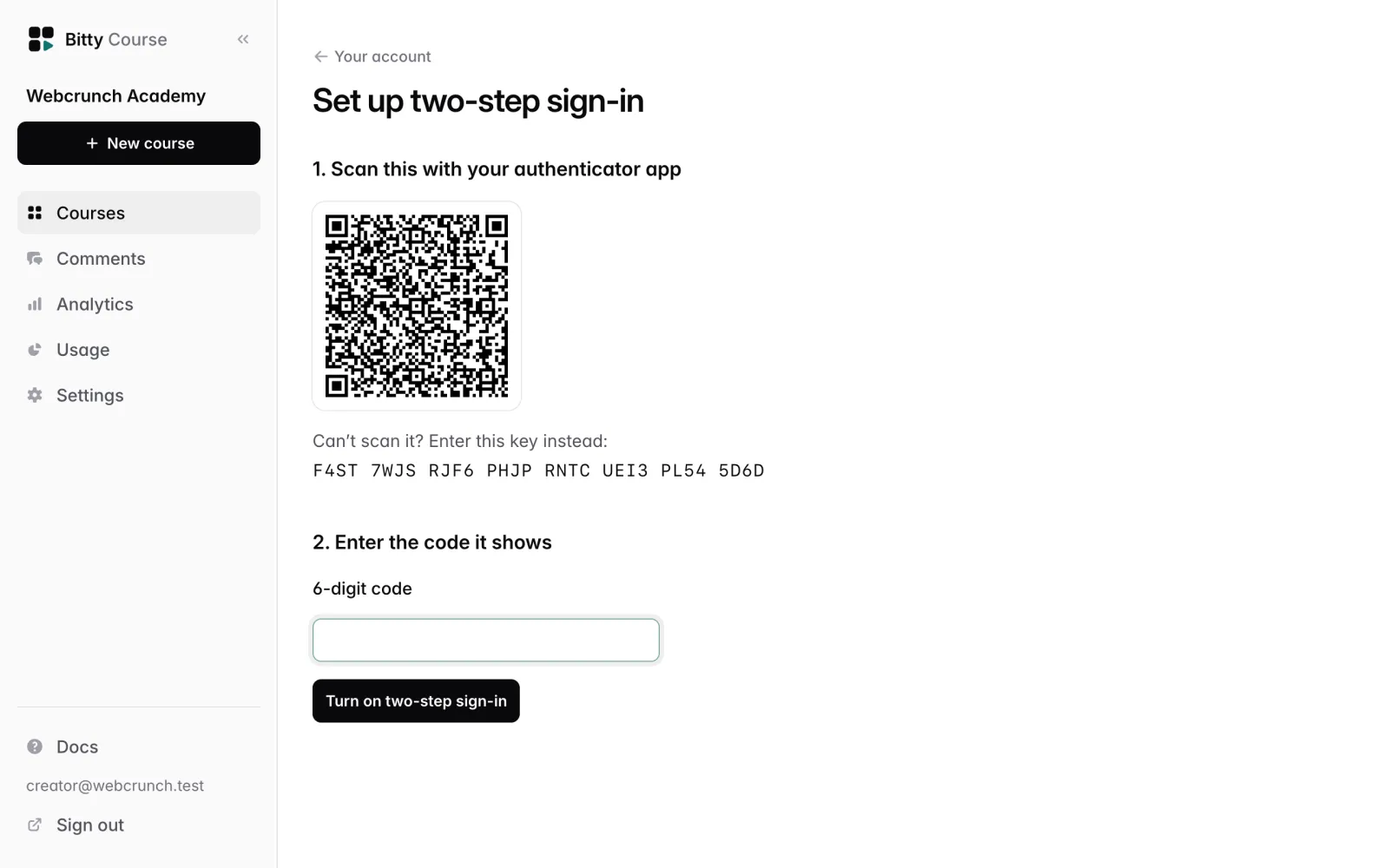
Once it's on, every way of signing in, on the studio and on course sites, asks Enter your authenticator code before you're in. Each code works once. A sign-in left at that step for more than 10 minutes has to start again.
On Your account you can also:
- Make new recovery codes: enter a current code. The old recovery codes stop working.
- Turn off two-step sign-in: enter a current code.
If you've lost both your authenticator and your recovery codes, contact Bitty Course support.
Good to know
- When your course site moves to a custom domain, signed-in students are asked to sign in once more on the new address. See Custom domains.
- There's no sign-in with Google, Apple or other providers, and no two-factor authentication.
- Sign-in codes are only stored as one-way digests. Nobody at Bitty Course or in your workspace can read a student's code or password.