Workspace
Team
Add teammates to your workspace, choose between the owner and editor roles, and see exactly what each role can do.
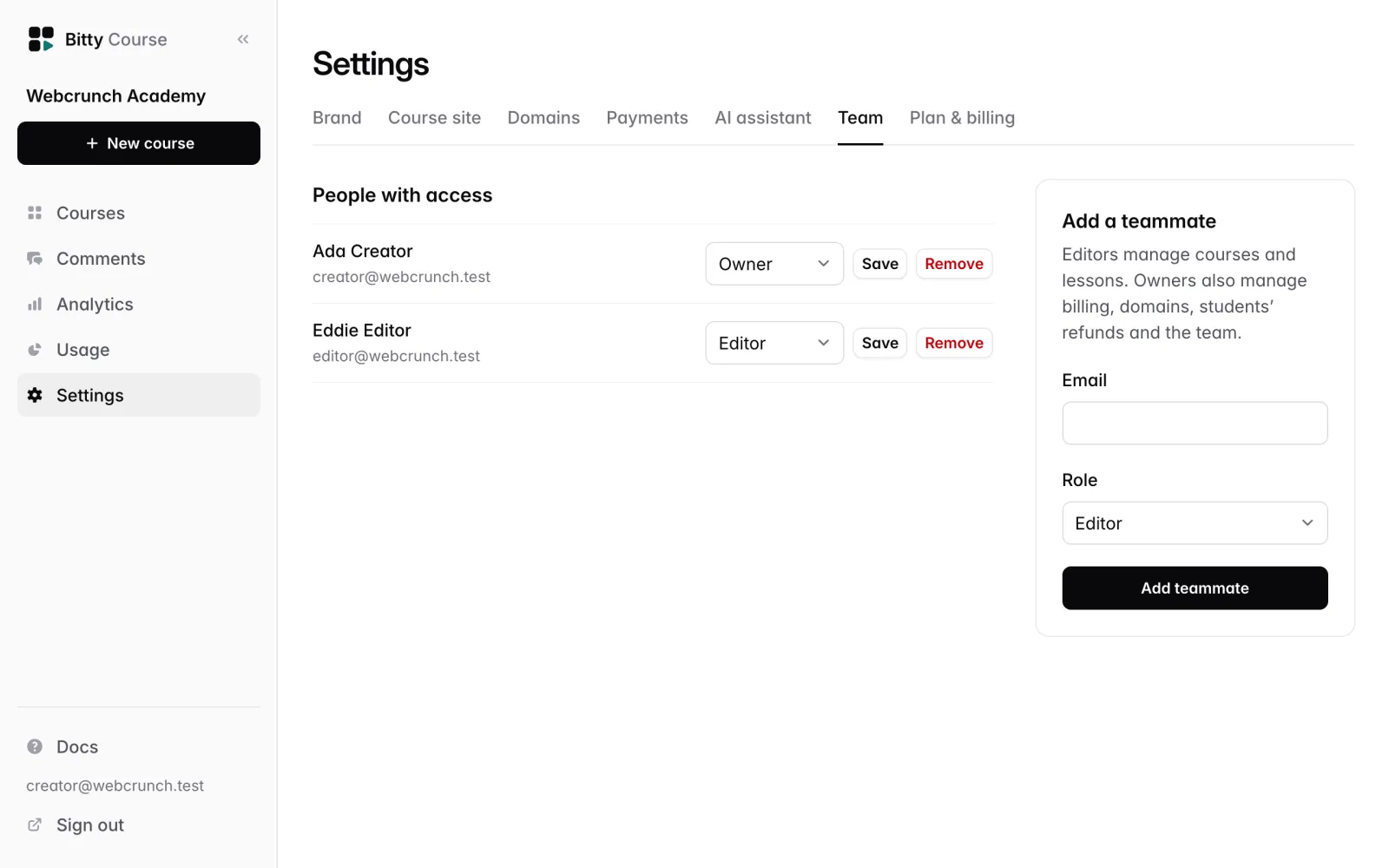
A workspace can have more than one person. Each teammate signs in with their own email and has one of two roles: Owner or Editor. Owners manage the team in Settings → Team.
Roles
There are exactly two roles. There is no view-only role.
- Editor: builds and runs courses (lessons, videos, quizzes, students, comments) and sees analytics.
- Owner: everything an editor can do, plus billing, payments, domains, brand and site settings, caption and dubbing settings, discounts, refunds, deleting courses, data export and the team.
The app sums it up as: "Editors manage courses and lessons. Owners also manage billing, domains, students' refunds and the team."
A workspace always has at least one owner. The person who creates the workspace is its first owner.
What each role can do
| Area | Owner | Editor |
|---|---|---|
| Create, edit, publish and unpublish courses | Yes | Yes |
| Delete a course | Yes | No |
| Sections, lessons, deleting lessons | Yes | Yes |
| Upload videos, publish video versions | Yes | Yes |
| Captions: upload, generate, and translate into languages an owner has turned on | Yes | Yes |
| Caption settings: automatic captions, translation languages and monthly cap | Yes | No |
| AI dubbing: turn it on, set the cap, dub a lesson | Yes | No |
| Chapters, attachments, quizzes, Draft with AI | Yes | Yes |
| Moderate comments (reply, hide, delete) | Yes | Yes |
| View students, progress and quiz attempts | Yes | Yes |
| Download the students CSV, sales CSV and workspace export (they include emails) | Yes | No |
| Add a student, remove or restore access | Yes | Yes |
| Refund a purchase | Yes | No |
| View discounts | Yes | Yes |
| Create, turn on or off, or delete discounts | Yes | No |
| Analytics, including revenue | Yes | Yes |
| Usage page | Yes | Yes |
| Change Brand and Course site settings | Yes | No (fields are shown but disabled) |
| Add, check or remove custom domains | Yes | No (can view the Domains page) |
| Connect or disconnect Stripe in Payments | Yes | No (can view status) |
| AI assistant tokens | Own tokens; can see and revoke anyone's | Own tokens only |
| Add or remove teammates, change roles | Yes | No (can see who's on the team) |
| Switch plan, cancel, reactivate | Yes | No (can view Plan & billing) |
| Download the data export | Yes | No |
When an editor tries an owner-only action, they see "Only workspace owners can do that."
Role changes and removals take effect on the person's next page load. There's no need for them to sign out.
Add a teammate
- Go to Settings → Team.
- Under Add a teammate, enter their Email and choose a Role (Editor is selected by default).
- Click Add teammate.
They're added straight away and emailed "You've been added to [workspace] on Bitty Course":
- If they're new to Bitty Course, the email has an Accept and sign in link that expires in 7 days and works once. It asks for their name, then opens the studio. After that they sign in with an emailed code.
- If they already have a Bitty Course account (including as a student on someone's course site), the email has a Sign in link.
There's no pending invitation to cancel: the person is a member as soon as you add them. To undo it, remove them.
Change a role
- Go to Settings → Team.
- Next to the person, choose Owner or Editor.
- Click Save.
You can't change the last owner to an editor. Make someone else an owner first.
Remove a teammate
- Go to Settings → Team.
- Click Remove next to the person and confirm.
They lose access to the workspace on their next page load. Their Bitty Course account stays, along with any other workspaces they belong to. The last owner can't be removed.
Owners can remove themselves while another owner exists. Editors can't remove themselves; an owner has to.
Several workspaces
One person can belong to several workspaces, with a different role in each. When you belong to more than one, the workspace name at the top of the studio sidebar opens a menu listing them; click one to switch. The menu also has New workspace, which creates a separate workspace with you as its owner.
Good to know
- Teammates can watch every lesson of every course in the workspace, including drafts, on the course site and in Preview as student, without enrolling or paying.
- Teammates' visits to course pages aren't counted as page views in analytics.
- Each person chooses their own weekly summary email. See Analytics.
- Emails about custom domains going live or breaking go to owners only.
- Plans don't limit the number of teammates.
- Every teammate signs in on their own. Don't share one login. See Signing in.