Video
Video versions
How to replace a lesson's video without changing its link, publish or roll back a version, and how long earlier versions are kept.
Every video you upload to a lesson is kept as a numbered version (v1, v2, v3…), and one version is live at a time. Replacing a video never changes the lesson's link, and you can roll back to an earlier version while it's still kept. Owners and editors can upload, publish and roll back.
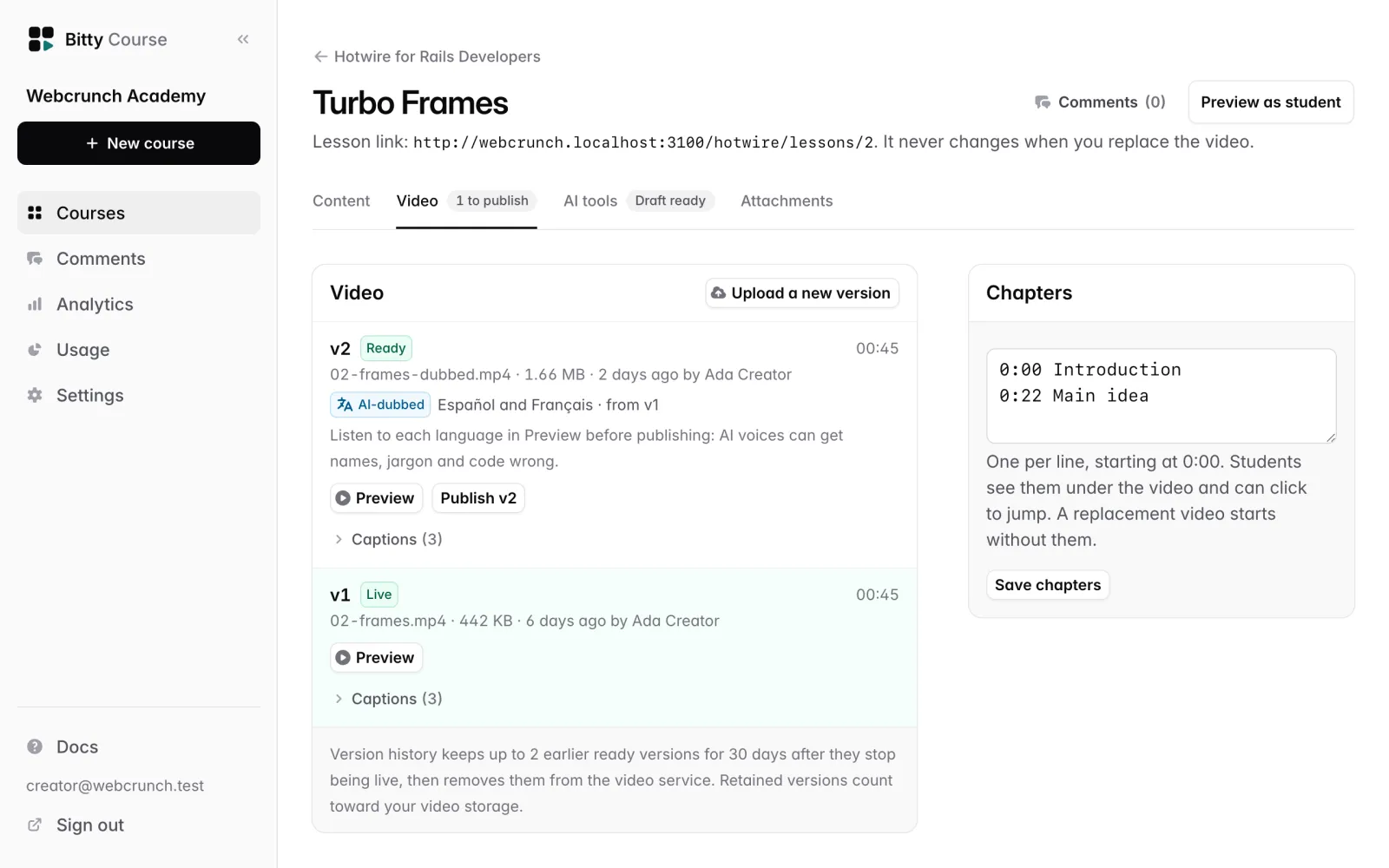
Replace a lesson's video
- Open the lesson and go to its Video tab.
- Click Upload a new version and pick the file.
- Wait until the new version shows Ready. Students keep seeing the current video meanwhile.
- Click Preview on the new version to watch it. Only you and your team can see this preview.
- Click Publish v2 (with your version number), on the version or on its preview page, and confirm.
The new version is now live at the same lesson link, and you see "v2 is now live at the same lesson link."
A lesson's very first video goes live automatically when it's ready. Every later version waits for you to publish it.
The Video tab shows a count such as "1 to publish" when a newer version is ready but not live.
Roll back to an earlier version
- Open the lesson's Video tab.
- On the earlier version, click Roll back to v1 (with its version number) and confirm.
Rolling back works exactly like publishing: that version becomes live at the same link. You can only publish or roll back to versions marked Ready. A version marked Expired has been removed and can't be restored.
If someone else on your team published a different version while you were looking, your publish is refused with "Another version was published while you were looking. Review and try again." Reload the page and check before trying again.
What students notice when you publish
- The lesson link stays the same. Bookmarks and links you've shared keep working.
- Students who completed the lesson keep it completed.
- Students who were partway through start from the beginning, with the note "This lesson's video was updated since you last watched, so it starts from the beginning."
- Comments that point at a moment in the earlier video are labeled Earlier video (v1). Clicking their timestamp plays that earlier version, while it's still kept. Once it's removed, the comment keeps its text and says "Refers to an earlier video that's no longer available."
What belongs to each version
These belong to one version, not to the lesson, because their timings only fit that cut:
- Captions. A new version gets its own automatic captions if they're on. Captions you uploaded yourself to an earlier version don't carry over; upload them again for the new one. See Captions and translations.
- Chapters. A replacement video starts without chapters. Add them after you publish it. See Chapters.
The lesson's title, description, notes, attachments, quiz and comments belong to the lesson and are unaffected.
A version made by AI dubbing is the exception: it starts with a copy of the original's captions and chapters, since the timeline is the same.
How long earlier versions are kept
For each lesson, Bitty Course keeps:
- the live version, always, and
- up to 2 earlier ready versions, each for up to 30 days after it stopped being live.
Versions outside those limits can be removed from the video service. A removed version shows Expired with "Removed by the retention policy; can't be restored." Its row stays in the list so comments that referred to it still make sense.
Details:
- If more than 2 earlier versions are ready, the ones that were live longest ago are outside the limit, even within the 30 days.
- A ready version that was never published counts from when it became ready.
- Uploads that failed or were canceled can be cleaned up after 7 days.
- When you publish or roll back, the version that was live becomes an earlier version, and its 30 days start then.
Keep your own copy of any video you might want later. Removed versions can't be recovered, including from backups.
Storage
Every kept version counts toward your plan's video storage, not only the live one. Replacing a 20-minute video means 40 minutes are stored for as long as the earlier version is kept. The Usage page shows how much of your storage is taken by earlier versions. See Plans and usage.
Good to know
- Students can only watch the live version, apart from following a timestamp comment to an earlier version that's still kept.
- You can cancel an upload that's still in progress or that failed, with Cancel. There is no button to delete a single ready version; it's removed by the retention policy, or with its lesson when you delete the lesson.