Video
Chapters
How to add, edit and remove chapters in a lesson video, the format they use, and what students see.
Chapters split a lesson video into named parts. Students see them under the video and click one to jump to that moment. Owners and editors can add and edit chapters.
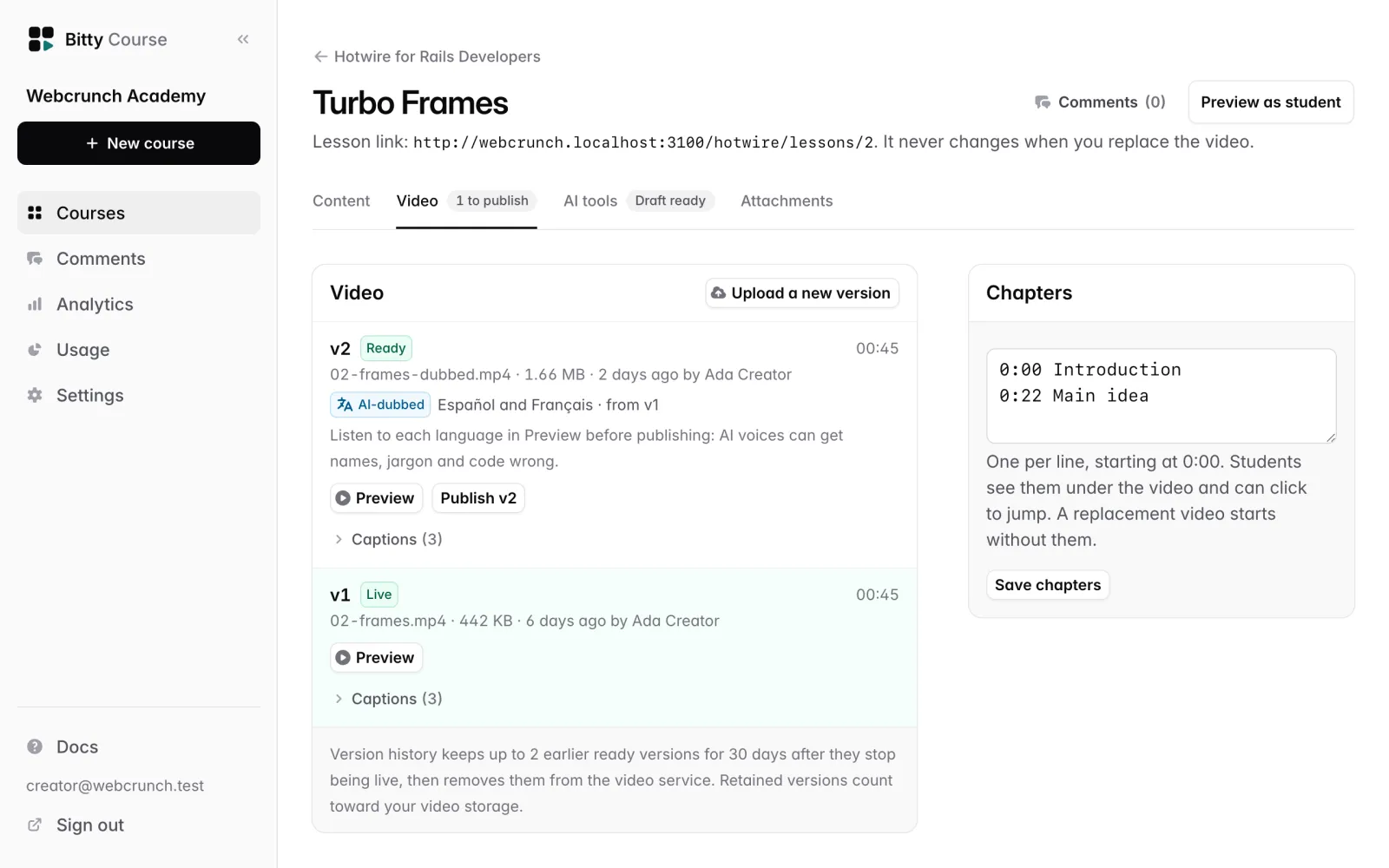
Add or edit chapters
- Open the lesson and go to its Video tab.
- In the Chapters box, type one chapter per line: a time, then a title.
- Click Save chapters.
Example:
0:00 Introduction
1:20 Installing Turbo
12:05 Your first frame
1:02:30 Wrap up
The Chapters box appears once the lesson has a live, ready video. Chapters always apply to the live video.
Format rules
- Times are minutes and seconds (
1:20) or hours, minutes and seconds (1:02:30). - You can put a dash or colon between the time and the title (
1:20 - Installing Turbo); it's optional. - The first chapter must start at
0:00. - No time can be at or past the end of the video.
- Up to 50 chapters. Titles longer than 100 characters are cut short.
- Lines can be in any order; they're sorted by time. If two lines have the same time, only the first is kept.
- Blank lines are ignored.
If something is wrong, nothing is saved and you see what to fix, for example "“Intro” needs a time first, like 1:20 Title" or "The first chapter should start at 0:00".
Remove chapters
Clear the Chapters box and click Save chapters. You see "Chapters removed."
Draft chapters with AI
Draft with AI, on the lesson's AI tools tab, can suggest chapters from the video's captions. You can edit the suggestion before clicking Save chapters there, and edit them again later in the Chapters box.
Chapters and new video versions
Chapters belong to one video version, because their times only fit that cut. When you publish a replacement video, it starts without chapters: add them again for the new video. Rolling back to an earlier version brings back that version's chapters. See Video versions.
A version made by AI dubbing keeps the original's chapters, since the timeline is the same.
What students see
- A Chapters list on the lesson page's Overview tab, below the video and after the lesson description, with each chapter's start time and title.
- Clicking a chapter jumps the video to that time.
The lesson editor's At a glance panel shows how many chapters the live video has.
Good to know
- You can only edit chapters for the live video. To prepare chapters for a replacement, publish it first, then add them.
- Chapters aren't shown as markers on the video's progress bar; they're the list below the video.
- Quiz lessons and lessons without a video have no chapters.