Build your course
Quizzes
Add multiple-choice quizzes to a course, set a pass mark, publish versions, and see how students score.
A quiz is a lesson made of multiple-choice questions. Students answer them in the course, get graded when they submit, and see the right answers with your explanations. You write questions as a draft and publish them when ready; students only ever see a published version.
Add a quiz
- On the course's Outline tab, click Add a quiz under the section where it belongs.
- Enter a Title. Optionally fill in Short description, Intro and Pass mark, and tick Free preview.
- Click Create quiz.
The quiz editor opens, ready for your first question. A quiz sits in the curriculum like any other lesson and is reordered the same way (see Sections and lessons). A quiz can't be turned into a video lesson, or the other way around.
Question types
| Type | Label in the editor | How students answer |
|---|---|---|
| Single answer | One answer | Choose one. Exactly one answer is marked correct. |
| Multiple answers | Several answers | Choose all that apply. One or more answers are marked correct. |
| True or false | True or false | Choose True or False. You only pick which one is correct. |
Free-text, numeric, matching and ordering questions aren't supported.
Write questions
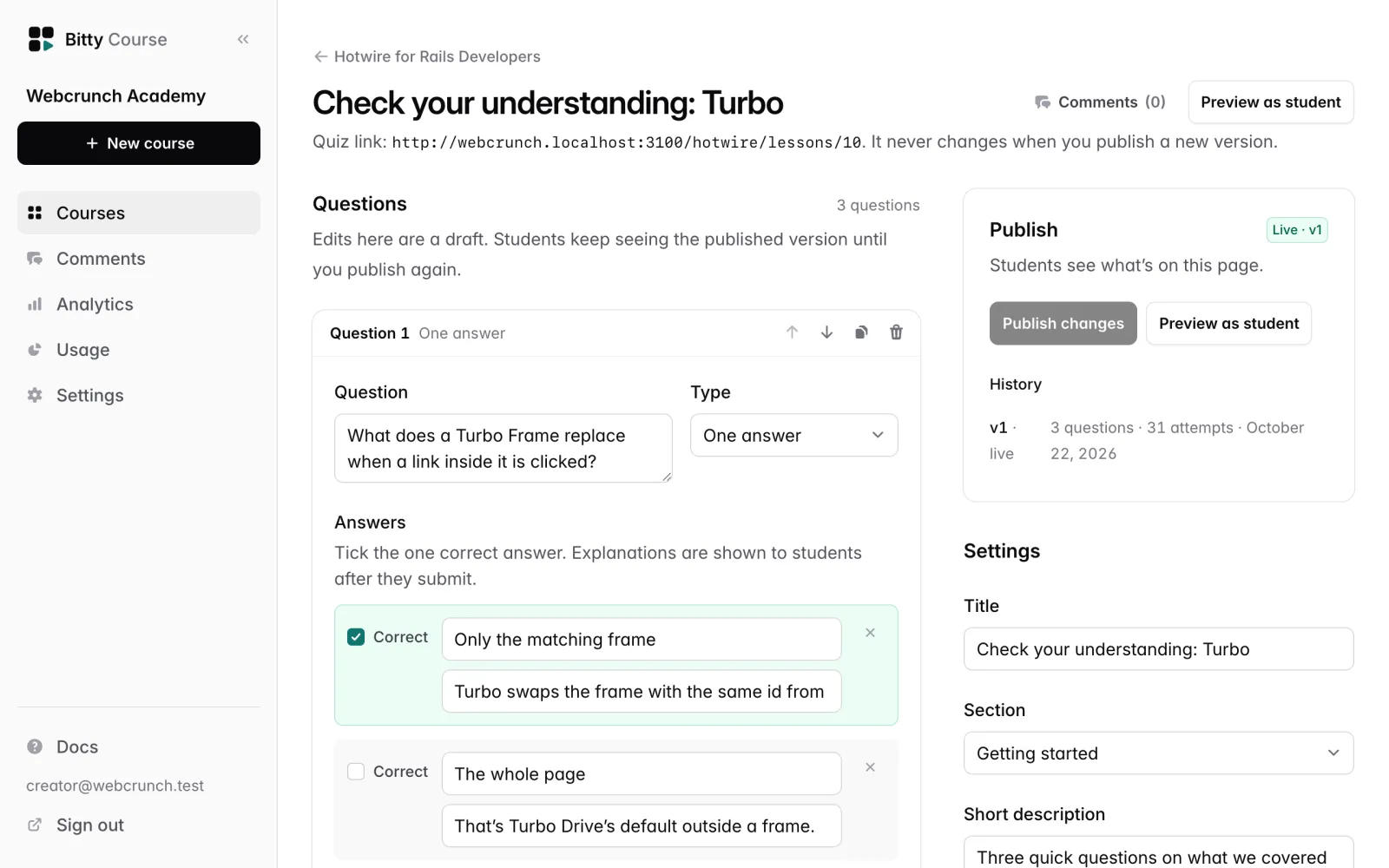
- Under Questions, pick a New question type and click Add question. The question starts with placeholder text and two answers.
- Write the Question.
- For each answer, enter the text and an optional explanation ("Why this is right or wrong").
- Tick Correct on the right answer, or on every right answer for Several answers.
- Click Add answer for more answers, or the remove button to drop one.
- Click Save question.
You can change a question's Type while editing it. Switching to True or false replaces its answers with True and False.
Each question has buttons to move it up or down, duplicate it, or delete it.
A question needs at least two answers and at least one correct answer, and single-answer and true/false questions can't have more than one. Problems are shown as a badge on the question and listed in the Publish panel.
Quiz settings
The Settings section of the quiz editor holds Title, Section, Short description, Intro, Pass mark and Free preview. Click Save settings.
- Intro is rich text shown on the quiz's start screen above the questions, for example what the quiz covers.
- Pass mark is a percentage from 1 to 100. It is optional:
- With a pass mark, students complete the quiz when their score reaches it.
- Without one, submitting the quiz completes it.
- Free preview lets anyone with the course link take the quiz without enrolling (see Grading and attempts below).
Changing the pass mark counts as a draft change: it takes effect for students when you publish the quiz again.
Publish a quiz
Your edits are a draft. Students keep seeing the published version until you publish again.
The Publish panel shows the quiz's state:
- Not published: students can't take the quiz yet.
- Unpublished changes: students see the live version, and your edits aren't live.
- Live · v2 (for example): students see exactly what's in the editor.
To publish, fix any problems listed in the panel, then click Publish quiz (first time) or Publish changes. Each publish creates a new numbered version (v1, v2, and so on). History lists the five most recent versions, with their question count, attempts and date.
A course can't be published while any of its quizzes is unpublished. The course's Before you publish list says which one.
Click Preview as student to take the current draft the way a student would. It is graded the same way, and nothing is saved.
What students see
A quiz opens on its own focused screen, without video or comments.
- Start screen: the title, short description and intro, and three facts: Questions, To pass (the pass mark, or "Just submit"), and Retakes (Unlimited). Students click Start quiz.
- One question per step, with Back and Next and a progress bar.
- Review your answers: a list of every question, with Change to go back to any of them. Students click Submit answers.
- Results: "You got 4 of 5 right (80%)" with Passed, Complete (no pass mark) or Not passed yet. Every question is marked Correct or Incorrect, showing the student's answer and the correct answer. Explanations are shown for the answers the student chose and for the correct answers.
From the results, students can click Retake quiz, or Continue to the next lesson after passing.
Correct answers and explanations are never sent to the student's browser before they submit. Grading happens on the server.
Grading and attempts
- Each question is right or wrong as a whole. For Several answers, the student must choose exactly the correct set; a partly right answer counts as wrong.
- The score is the share of questions answered correctly, rounded down to a whole percent.
- Every question must be answered before the quiz can be submitted. Unanswered questions are pointed out, and nothing is recorded.
- Retakes are unlimited, and lessons are never locked behind a quiz.
- Passing (or submitting, with no pass mark) marks the quiz complete in the student's progress. Students can't mark a quiz complete by hand.
- Each attempt is saved and tied to the version the student took. Publishing a new version never changes earlier scores.
- If you publish a new version after a student's attempt, they see "This quiz was updated since your last attempt" with their earlier score, and can take the new version.
- If you publish while a student is answering, their submission is refused and they're asked to answer the new version.
- Visitors on a free-preview quiz can take it without signing in. Their result is shown but not saved.
See results
- Students tab → a student: Quiz attempts lists each attempt with score, Passed or Not passed, and when. See Students.
- Analytics tab: for each quiz, the share of attempts that passed, the average score and the number of attempts in the selected range, plus Most missed: up to three questions in the live version answered wrong most often. See Analytics.
- The workspace export includes quizzes and attempts. See Settings and export.
Delete a quiz
In the quiz editor, under Delete quiz, click Delete quiz and confirm. This removes the quiz, all its versions and every student attempt. It can't be undone.
Good to know
- Draft with AI can suggest quiz questions from a video lesson's transcript, and a connected AI assistant can write and publish quizzes.
- Owners and editors can create, edit and publish quizzes (see Team).
- There is no time limit, no limit on attempts, no question shuffling, and no images in questions or answers.
Limits
| Item | Limit |
|---|---|
| Question text | 1,000 characters |
| Answers per question | 2 to 8 |
| Answer text | 500 characters |
| Explanation | 1,000 characters per answer |
| Pass mark | 1–100% |