AI and automation
Draft with AI
How Draft with AI writes a lesson description, key takeaways, chapters and quiz questions from a video's captions, and how you review and use each piece.
Draft with AI reads a video lesson's captions and proposes four things: a description, key takeaways, chapters and quiz questions. You edit each piece, then use it or discard it. Nothing changes for students until you use a piece.
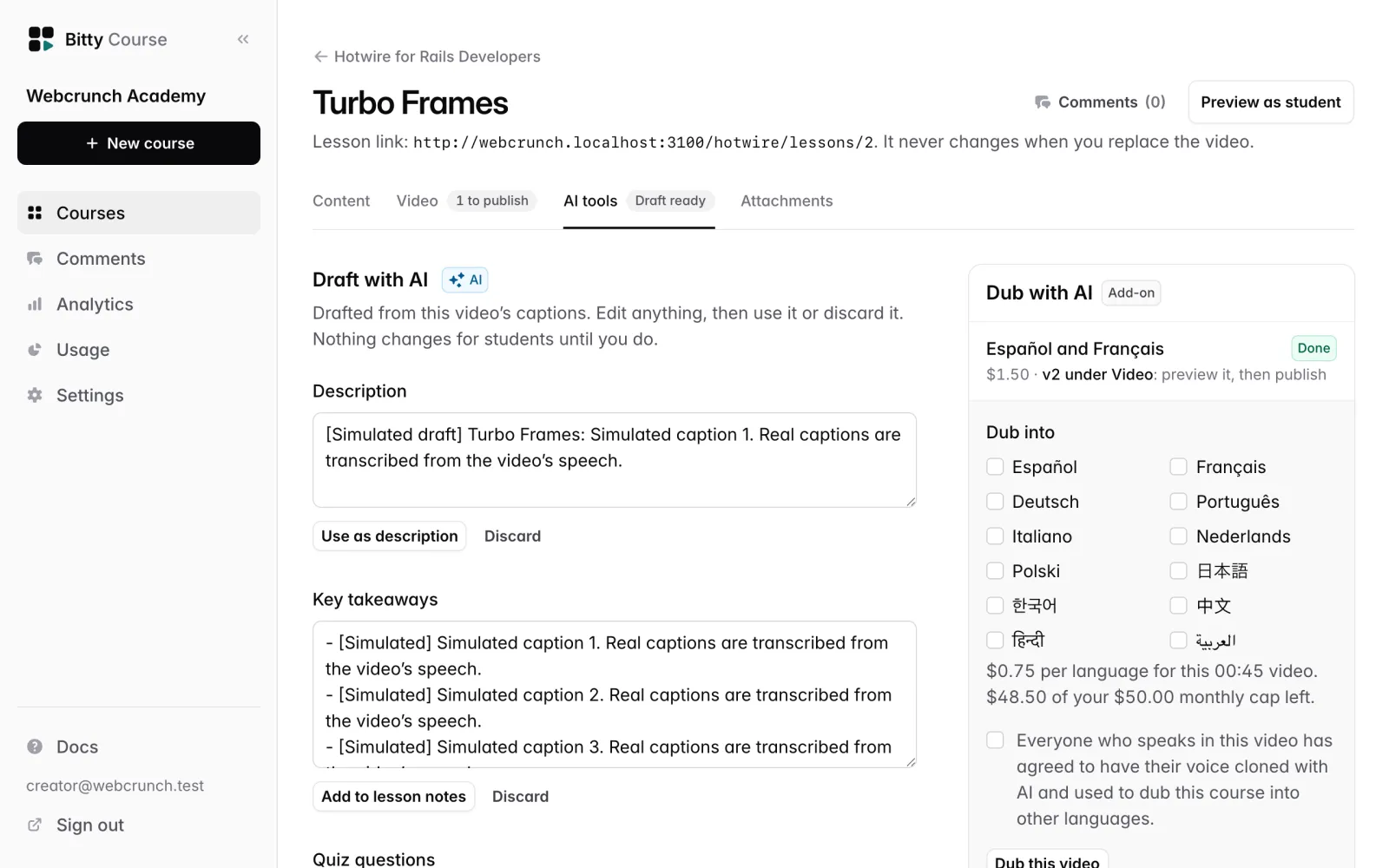
What it drafts
| Piece | What you get | Where it goes when you use it |
|---|---|---|
| Description | One or two plain sentences on what the student learns in the lesson. | Replaces the lesson's description. |
| Key takeaways | Three to five short points a student should remember (at most 6). | Added to the end of the lesson notes under a "Key takeaways" heading, as a bulleted list. |
| Chapters | Three to eight chapters where the topic changes, each with a start time and a short title. The first starts at 0:00. | Saved as the video's chapters, which students click to jump. See Chapters. |
| Quiz questions | Three to five multiple-choice questions, each with one correct answer and a one-sentence explanation for every answer. | A new quiz lesson right after this one, unpublished. See Quizzes. |
Drafts are written in the language of the transcript. They use only what the captions say: no added facts, links, prices or promises.
A video under two minutes gets no chapters. A piece the draft couldn't fill doesn't appear.
Before you start
Draft with AI works when all of these are true:
- The lesson is a video lesson. Text-only and quiz lessons can't be drafted.
- The lesson has a video that is ready and live. See Uploading video.
- The live video has captions. Your own captions are used first; otherwise the automatic ones. See Captions and translations.
- Your workspace has drafts left this month.
- Your workspace isn't read-only (a canceled subscription makes it read-only).
If something is missing, the Draft with AI panel says what, for example "Upload a video and make it live first." or "This video needs captions first: they're what the draft is written from."
Owners and editors can both use Draft with AI.
Draft a lesson
To draft a lesson:
- Open the lesson and go to its AI tools tab.
- In the Draft with AI panel, click Draft with AI.
- Wait. The panel shows "Writing a draft from this video's captions…" and the AI tools tab shows Drafting. You can leave the page; the draft keeps going, and the tab shows Draft ready when it's done.
Only one draft per lesson runs at a time.
Edit and use each piece
When the draft is ready, each piece appears in its own box. Edit the text, then click its button or Discard.
- Description: edit the text, then click Use as description.
- Key takeaways: one point per line. Click Add to lesson notes. You need at least one point.
- Chapters: one per line, a time and then a title. Click Save chapters. Chapters are checked the same way as in the chapter editor, and the save is refused if a line is wrong.
- Quiz questions: shown read-only here. Click Add as a quiz lesson to create a quiz lesson named "Check your understanding: lesson title" right after this lesson, in the same section. You go straight to it so you can edit the questions in the quiz builder. It stays unpublished until you publish it.
Discard drops that piece and changes nothing. Pieces you've used or discarded disappear from the panel.
If you replaced the lesson's video after drafting, saved chapters go on the video they were drafted from, not the new live one. The app tells you when that happens.
Draft again
Once a draft is showing, Draft again writes a new one from the current live video's captions. The newest draft replaces the one shown. Each new draft uses one from your monthly allowance.
Monthly allowance
Each workspace gets a number of drafts per calendar month (UTC), set by its plan:
| Plan | Drafts per month |
|---|---|
| Free | 5 |
| Starter | 100 |
| Plus | 300 |
The panel shows "N of M drafts left this month". When you run out, the panel says so and the button goes away until next month or until you change plan. See Plans and usage.
Failed drafts don't count. If drafting fails, the panel shows why ("The last draft didn't finish: …") and you can try again.
Good to know
- AI drafts can be wrong or miss what matters. Check each piece against your video before you use it.
- Using Key takeaways adds to your existing lesson notes; it never replaces them. Using it twice adds two lists.
- Drafted quiz questions are always single-answer questions. Change them in the quiz builder if you want other kinds.
- Very long transcripts are cut to about an hour of speech before drafting.
- Draft with AI runs inside Bitty Course. To build whole courses with your own AI assistant, see MCP server.