Students
Emailing students
Send an announcement to everyone enrolled in a course, test it first, and how students stop these emails.
Send a course's students an email, for example when a new lesson is up or before a live session. It comes from your workspace name and in your brand.
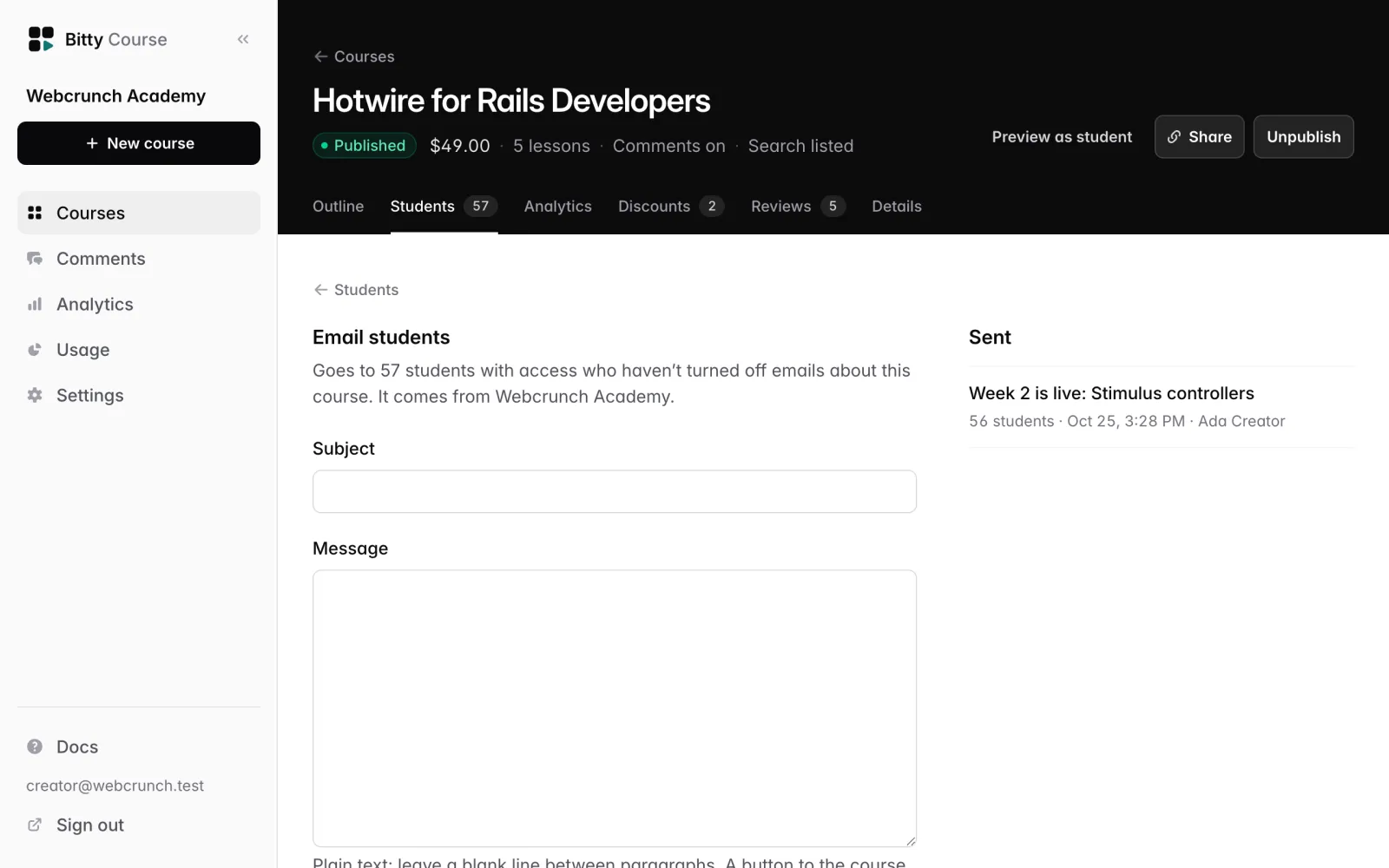
Send an announcement
- Open the course and click the Students tab.
- Click Email students.
- Write a Subject and a Message. The message is plain text: leave a blank line between paragraphs.
- Click Send me a test to get a copy at your own email address first. Students aren't emailed. The test's subject starts with "[Test]".
- Click Send to N students and confirm.
The page says "Sending to N students. It can take a few minutes to reach everyone." Emails go out in the background.
Who gets it
- Every student with access to the course, except students who turned off emails about it.
- Not students whose access you removed.
- Each student gets each announcement once, even if sending is retried.
The count on the button and on the page is who will get it right now.
What the email looks like
- From: your workspace name "via Bitty Course". If you set a Support email in Settings → Course site, replies go there.
- Your logo and brand color, your message, and a Go to button to the course.
- At the bottom: "You're getting this because you're enrolled in" the course, and a Stop emails about this course link.
Students stopping these emails
The link in each announcement opens a page asking "Stop emails about" the course. Clicking Stop these emails turns off announcements for that course only. Mail apps' built-in unsubscribe button does the same. The student keeps their access, and still gets sign-in codes and other account email.
You can't turn announcements back on for a student. They can't yet turn them back on themselves either.
Sent announcements
The Sent list on the same page shows each announcement's subject, how many students it went to, when and who sent it (the latest 20).
Who can do what
| Action | Owner | Editor |
|---|---|---|
| Email students | Yes | Yes |
| Send a test | Yes | Yes |
A read-only workspace (after cancelling) can't send announcements.
Limits
- The course must be published.
- Up to 3 announcements per course in 24 hours.
- Subject up to 150 characters; message up to 10,000 characters.
- No scheduling, attachments, images or formatting beyond paragraphs.
- Not available to AI assistants: the MCP server never sees or emails students.