Students
The student experience
What your students see on your course site, from signing in and buying to watching, quizzes, questions, progress and downloads.
Your students never see the Bitty Course studio. They use your course site: your hosted address or your own domain, with your name, logo, color and look. This page walks through it from their side, so you can answer their questions and know what to expect.
To see it yourself, click Preview as student on any course in the studio.
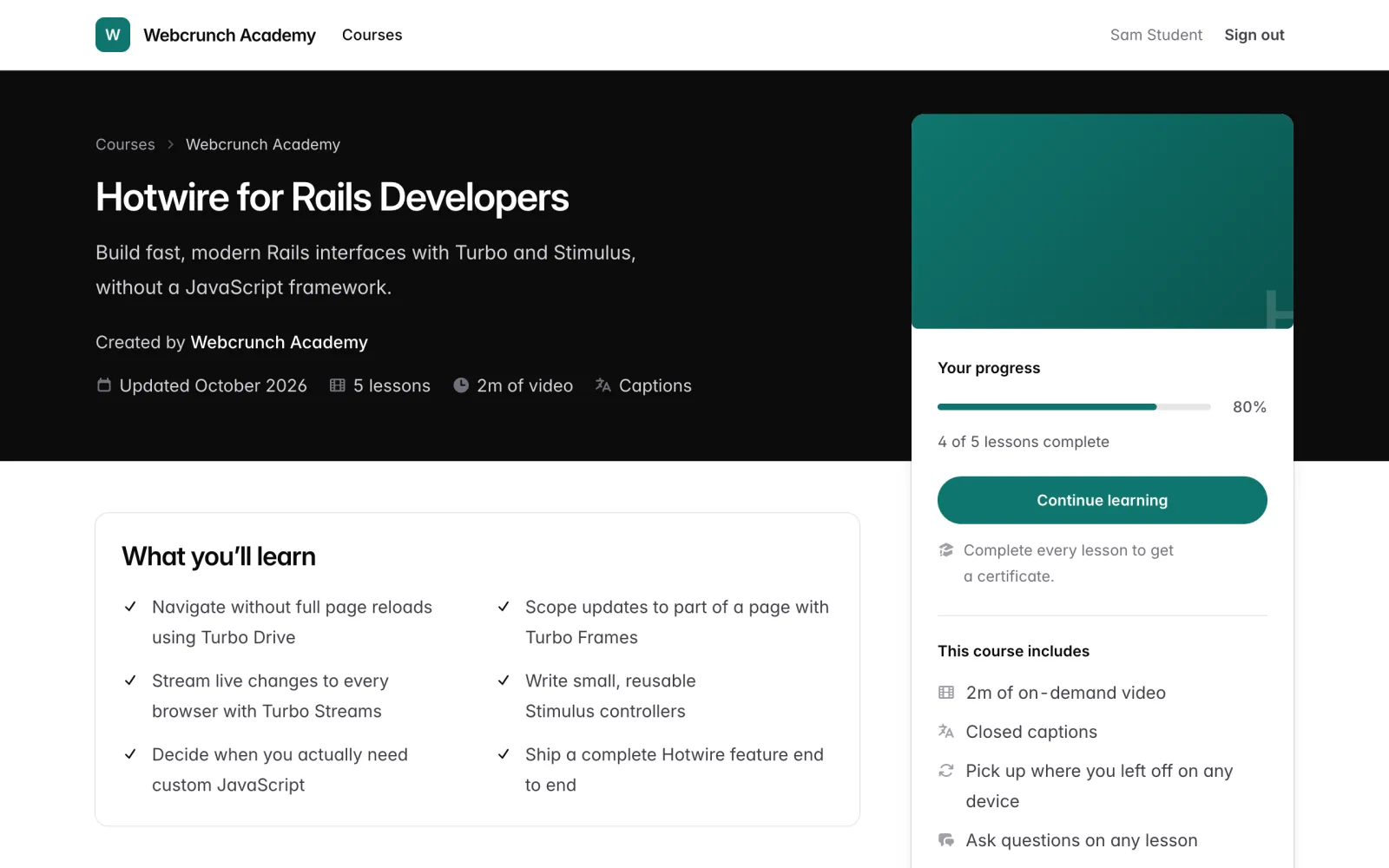
The course site
The home page of your course site lists your published courses under Courses. Each card shows the course cover, and for students who are enrolled, their progress.
A course page shows:
- the title, tagline, "Created by" your brand name, last updated month, lesson count, total video length and Captions if any lesson has captions
- a card with the price and a buy button, or Enroll for free, or Invite only. Enrolled students see Your progress instead.
- What you'll learn, Course content (sections and lessons, with lengths) and Description
- This course includes: hours of on-demand video, the number of downloadable resources, closed captions, "Pick up where you left off on any device" and, if comments are on, "Ask questions on any lesson"
Lessons the visitor can't open show a lock. If the creator releases a section over time, its lessons show Opens and the date instead, in the student's time zone (see Sections and lessons). Lessons you marked as free preview show Preview, and if the course has one, the cover shows Preview this course.
Signing in
Students sign in on your course site with Log in in the header. There is no separate sign-up step.
- Enter an email address and click Email me a sign-in code.
- Type the 6-digit code from the email and click Sign in, or click the link in the email and then Sign in.
The first time someone signs in with an email, their account is created. The code and link expire in 15 minutes and work once. Students can also set a password and use Sign in with a password. See Signing in for limits, passwords and troubleshooting.
Signing in on one address doesn't sign the student in on another. If your course site moves to a custom domain, students sign in once more there.
Getting access
How a student gets in depends on the course's access setting (see Pricing and access).
Paid courses
- The student clicks Buy course. If they aren't signed in, they're asked to sign in first ("You'll log in or create an account first").
- They pay on Stripe's checkout page.
- They return to a "Confirming your payment…" page that refreshes on its own. Access starts once Stripe confirms the payment, usually within a few seconds. Then they see You're in! and Start the course.
Details students may see:
- Have a coupon? opens a code box. A valid code shows the discount and the new price. A sale price shows automatically, with a countdown when it ends within 30 days. See Coupons and sales.
- If a code makes the course free, the button reads Get free access and no payment is taken.
- If they leave checkout without paying, they see Checkout didn't complete and "You haven't been charged."
- While a checkout is still open, the course page says "A checkout is in progress" with a Check status link.
- If you haven't finished setting up payments, the course page says "Sales are paused while [your name] sets up payments. Check back soon." See Getting paid.
- A purchase is one-time: "One-time purchase. Watch at your own pace."
Free courses
The student clicks Enroll for free. If they aren't signed in, they sign in first, return to the course page, and click Enroll for free again.
Invite-only courses
The card says Invite only and "Access is given by [your name]. If you were invited, log in with the email address they used." You add students from the course's Students tab. See Students.
Free preview lessons
Anyone with the link can watch a free preview lesson, without signing in. Comments stay closed to people who aren't enrolled.
Watching a lesson
The lesson page puts the video on a dark stage, with the lesson details and the course outline beside it. The header shows "Lesson 3 of 12" and the section, with Previous and Next buttons. The top bar shows the student's progress through the course.
Player controls
Under the video:
- 10s back and 10s forward
- Autoplay (only when there is a next lesson the student can open)
- Speed: 0.5×, 0.75×, 1×, 1.25×, 1.5×, 1.75× or 2×
- Audio, on lessons dubbed into other languages: choose the language to listen in (see AI dubbing)
- Captions: Off or any caption language the lesson has. When the chosen captions were made by AI, a note says "These captions were made by AI and may contain mistakes." See Captions and translations.
- Full view (wider video, on larger screens) and Full screen
Keyboard shortcuts: f toggles full screen and t toggles full view.
Speed, caption language, audio language and the autoplay choice are remembered in that browser for every lesson. They don't follow the student to another device.
Resume
The player saves the student's position about every 10 seconds and whenever they pause. The position is stored on their account, so they pick up where they left off on any device. Exceptions:
- If they watched to the end last time, the video starts from the beginning.
- If you replaced the lesson's video since they last watched, it starts from the beginning with a note: "This lesson's video was updated since you last watched, so it starts from the beginning."
Autoplay and up next
When a video ends and there's a next lesson the student can open, an Up next panel shows its title. With Autoplay on (the default), it counts down 8 seconds and then opens the next lesson. Cancel (or Escape) stays on the current lesson, and Play now goes straight away. With Autoplay off, the panel waits for the student to choose.
Chapters
If the lesson has chapters, they're listed under Chapters in the Overview tab with their start times. Clicking one jumps the video to that point. See Chapters.
When a video won't play
The player shows a message instead of the video:
- "This lesson's video isn't available right now." when the lesson has no ready video.
- "Playback is temporarily paused for this course. The creator has been notified." when the workspace has gone past its viewing allowance for the month. See Plans and usage.
- A locked lesson page ("Your account doesn't have access to it yet." or "Log in to watch it if you're enrolled.") when the student isn't enrolled, or "This lesson opens on" a date when it's in a section that hasn't opened yet.
Lesson tabs
Below the video:
- Overview: the lesson description, chapters and lesson notes.
- Resources: files you attached, each with Download. Shown only when the lesson has files that are ready to download. Every download checks the student's access again, so a copied download link doesn't work for someone who isn't enrolled.
- Q&A: questions and comments (see below). Shown only when comments are on for the course and the student is enrolled.
Progress and completion
- A video lesson is marked complete automatically once the student has watched 90% of the current video.
- Students can also click Mark complete on any lesson. On a completed lesson the button reads Completed, and clicking it marks the lesson incomplete again.
- A quiz lesson is completed by passing the quiz.
- The course page shows Your progress with a bar and "4 of 12 lessons complete", plus Start course or Continue learning, which opens the first lesson they haven't completed.
- Completed lessons show a check in the outline.
- If the creator turned on certificates, a student who completes every lesson sees Your certificate on the course page (see Courses).
If you replace a lesson's video, lessons the student already completed stay completed.
Quizzes
A quiz lesson opens full screen, without a video.
- The start screen shows the number of Questions, what it takes To pass (a percentage, or "Just submit" if there's no pass mark) and Retakes (Unlimited). The student clicks Start quiz.
- One question per step. "Choose one." or "Choose all that apply." says what kind it is. Back and Next move between questions.
- Review your answers lists every question, with Change to go back. The student clicks Submit answers. Every question needs an answer.
- The result shows the score ("You got 4 of 5 right (80%)") and Passed, Complete (no pass mark) or Not passed yet. Your answers marks each question Correct or Incorrect, shows the right answers, and shows your explanations for the choices they picked and the correct ones.
- Retake quiz starts again. After a pass, Continue opens the next lesson.
Correct answers are never in the page before the student submits. If you publish a new version of the quiz while a student is answering, they're asked to answer the new version. Their earlier results are kept. On a free preview lesson, someone who isn't signed in can try the quiz, but nothing is saved. See Quizzes.
Questions and comments
On the Q&A tab, enrolled students can:
- Post a question or comment (up to 5,000 characters). The tab says "[Your name] replies when they can. There's no live chat."
- Click Link to with the current video time to attach a timestamp. Others can click the timestamp to jump there. If you've replaced the video since, the timestamp plays the earlier version for as long as it's kept, with a note and Back to the current video. See Video versions.
- Reply to a comment.
- Delete their own comments.
- Report someone else's comment to you.
Students can post up to 5 comments a minute and 20 an hour. See Comments for moderation.
Emails students get
Emails to students come from "[your brand name] via Bitty Course", with your logo and color, and reply to your support email if you set one (Settings → Course site → Support email). They include:
- sign-in codes
- "You have access to [course]" after a purchase is confirmed, or when you add them on the Students tab
- password reset links, if they use a password
Good to know
- Students need a modern browser with JavaScript for the video player. Quizzes still work without JavaScript, as one long form.
- If you cancel your subscription, enrolled students keep watching for 30 days. After that the site shows "These courses are currently unavailable". See Settings and export.
- Videos are protected by short-lived playback links tied to enrollment, but no video platform can stop a determined person from recording their screen. See Playback and security.