AI and automation
MCP server
Connect your own AI assistant to Bitty Course over MCP with a personal access token, what it can and can't do, and how to see and stop what it does.
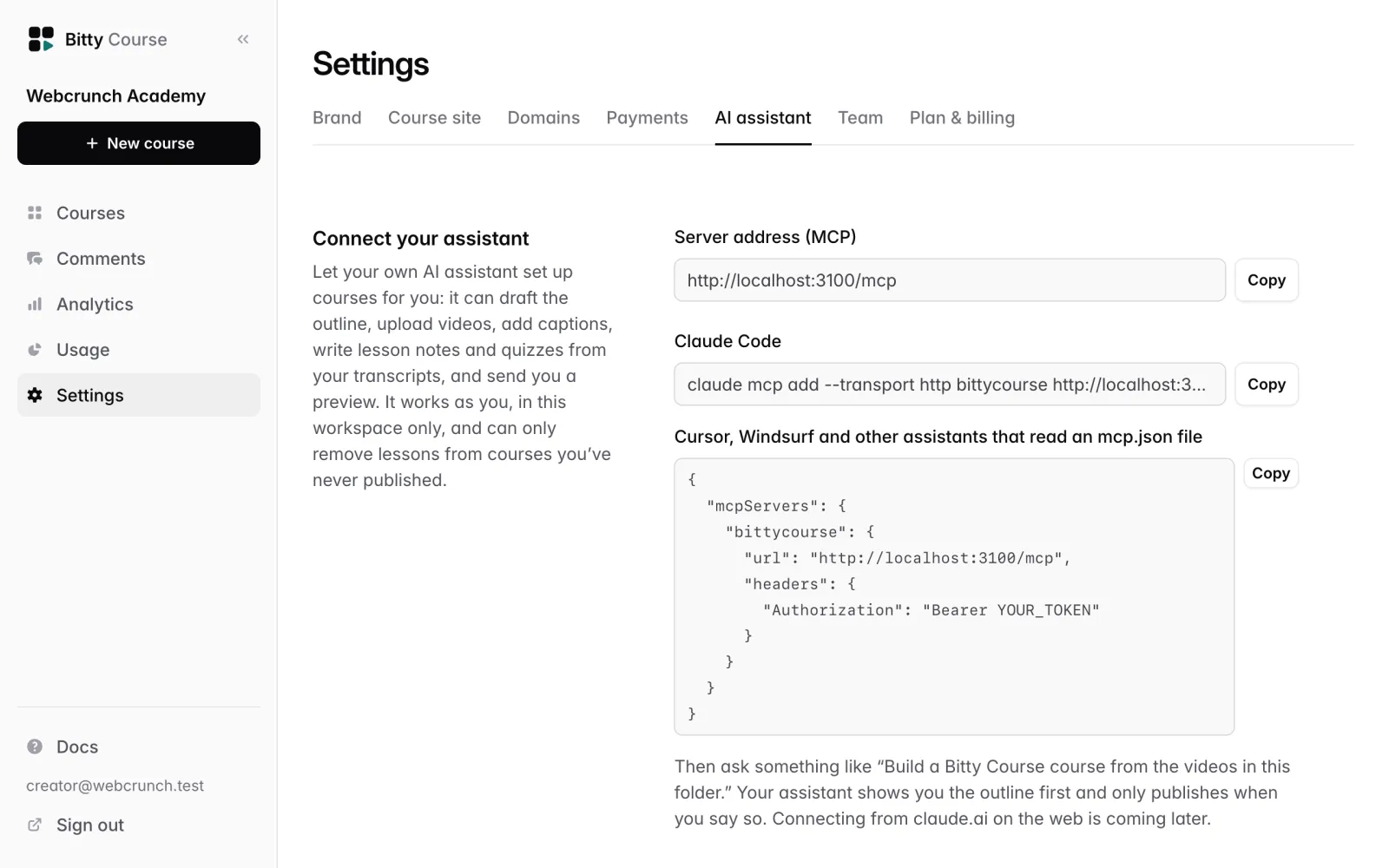
Bitty Course has an MCP (Model Context Protocol) server. Connect your own AI assistant to it and the assistant can set up courses for you: draft the outline, upload videos, add captions, write lesson notes and quizzes from your transcripts, check stats and send you a preview. It works as you, in one workspace, with the access you give its token.
How it works
- The server lives at
/mcpon your Bitty Course app address. The exact URL is shown under Settings → AI assistant as Server address (MCP). - It speaks JSON-RPC over HTTP: one
POSTper message, JSON replies. It doesn't open streams or keep sessions (GETandDELETEare refused). - Every request carries a personal access token in the header
Authorization: Bearer <token>. The token decides the workspace, the person and what the assistant may do. - The assistant does the thinking (outlines, copy, quiz questions). The server applies its changes through the same rules as the studio: plan limits, publish checks and upload checks all still apply.
Create a token
Each person makes their own tokens. Owners and editors can both create them.
To create a token:
- Go to Settings → AI assistant.
- Under Access tokens, in Name it after the assistant, enter a name, for example "Claude Code on my laptop" (up to 60 characters).
- Under What it may do, choose one:
- Read only: Can look at your courses and stats. Can't change anything.
- Build drafts (recommended): Can create courses and change ones that were never published. Students never see its changes until you publish.
- Build and publish: Can also change published courses and publish when you ask.
- Click Create token.
- Copy the token now. It is shown once ("Copy your token now. You won't see it again.") and Bitty Course stores only a fingerprint of it. Afterwards the list shows only its last four characters.
Tokens start with bc_. Treat a token like a password: anyone who has it can act as you in that workspace, within its access level.
Each person can have up to 10 active tokens in a workspace. Revoke one to make room.
You can't create tokens while the workspace is read-only (after its subscription is canceled).
Connect your assistant
Any assistant that can connect to a remote MCP server over HTTP and send an Authorization header can connect. It needs two things: the server URL and the header Authorization: Bearer <your token>.
Settings → AI assistant shows ready-to-copy snippets with your server address filled in. Right after you create a token, they include that token too.
For Claude Code, run:
claude mcp add --transport http bittycourse <server address> --header "Authorization: Bearer <your token>"
For Cursor, Windsurf and other assistants that read an mcp.json file, the configuration has this shape:
{
  "mcpServers": {
    "bittycourse": {
      "url": "<server address>",
      "headers": {
        "Authorization": "Bearer <your token>"
      }
    }
  }
}
For other assistants, check their own docs for where to put a remote server URL and a custom header.
Connecting from claude.ai on the web isn't supported.
What the token's access level allows
| Read only | Build drafts | Build and publish | |
|---|---|---|---|
| See courses, outlines, links, stats, transcripts, discounts | Yes | Yes | Yes |
| Create courses | No | Yes | Yes |
| Change a course that was never published | No | Yes | Yes |
| Change a course that has been published | No | No | Yes |
| Publish a course | No | No | Yes |
A Read only token sees only the reading tools; the others aren't offered to the assistant at all. A Build drafts token gets an error if it tries to change a published course, and is told to ask you.
The token also carries your role. An editor's token can't do owner-only things, whatever its access level.
What an assistant can do
- Look at your workspace: plan, limits, video storage, whether payments are set up, and your courses.
- Create a course and build its outline: sections, video, text and quiz lessons, reordering and renaming.
- Write course and lesson copy: title, tagline, description, outcomes, access mode and price.
- Upload a video to a lesson, check its processing status, and make a replacement video live (the old one is kept for rollback in the studio).
- Add captions (WebVTT), read a lesson's transcript, and set chapters.
- Write quizzes, and publish them.
- Set a course cover image and add lesson attachments, with the same checks as studio uploads.
- Read course and workspace stats, and get the links to share.
- See coupon codes and sales; owners can create them and turn them on or off.
- Publish a course, with a Build and publish token, when you ask.
The full list of tools, with their inputs, is at MCP tool reference.
The server also offers a ready-made prompt, Build a course from my videos, which your assistant may list among its prompts.
What an assistant can't do
- Delete courses. It can remove lessons and sections only from courses that were never published.
- Unpublish a course.
- See or manage students, enrollments, refunds or team members.
- Change settings, payments, domains, billing or tokens.
- Work in any workspace other than the token's.
Owner-only actions
Creating a coupon or sale, and turning one on or off, take a workspace owner's token, as in the studio. Discounts also need a token that may change the course: a published course needs Build and publish. See Coupons and sales.
Privacy
Assistants never see student names or email addresses. Stats and discount reports give counts and amounts only: how many students, where they stop, which quiz questions they miss most, how many comments are waiting for your reply, and what each discount use paid. To see who, use the studio. See Analytics and Students.
See what assistants changed
Settings → AI assistant has an Activity list: every change an assistant made, newest first, with the token's name, when, and a link to the course. Reading doesn't show up there.
The page shows the 30 most recent changes. Activity is kept for 90 days.
The Access tokens list shows each token's name, last four characters, access level, when it was created and when it was last used ("never used" until then). You see your own tokens; owners see everyone's in the workspace, with who created each one.
Revoke a token
To revoke a token:
- Go to Settings → AI assistant.
- Under Access tokens, click Revoke next to the token.
- Confirm.
Assistants using it lose access immediately. You can revoke your own tokens; owners can revoke anyone's in the workspace.
A token also stops working when the person who created it leaves the workspace.
Example prompts
- "Build a Bitty Course course from the videos in this folder."
- "Show me an outline first: sections, lesson titles and one quiz per section. Don't create anything until I say OK."
- "Read the transcript of each lesson in my course and write a lesson description and short notes."
- "Draft a five-question quiz for the 'Getting set up' section from its transcripts."
- "Which lesson in my course do most students stop at, and what would you change?"
- "Send me the preview link." Then, when you're happy: "Publish it."
- "Create a coupon LAUNCH20 for 20% off, limited to 50 uses." (owner token)
The assistant is told to show you the outline first and to publish only after you explicitly say so. The publish_course tool also refuses unless the assistant passes confirmed_by_creator: true, which it is told to send only after you've said yes. The bitty courses publish command counts as your confirmation.
Limits
- 120 requests per minute, counted per token and network address. Above that, requests are refused with "Too many requests. Slow down and retry shortly."
- One message per request. JSON-RPC batches are refused.
- Plan limits apply exactly as in the studio, for example how many courses you can publish. See Plans and usage.
- A read-only workspace (canceled subscription) can be read but not changed.
- Prefer a command line? The bitty CLI uses the same server and tokens.