Sell
Coupons and sales
Create coupon codes and timed sales for a paid course, share coupon links, and see who used each discount.
Discounts lower the price of a paid course. A coupon code applies to students who enter it or follow your coupon link; a timed sale applies to everyone, with a countdown on the course page. Only workspace owners can create or change discounts.
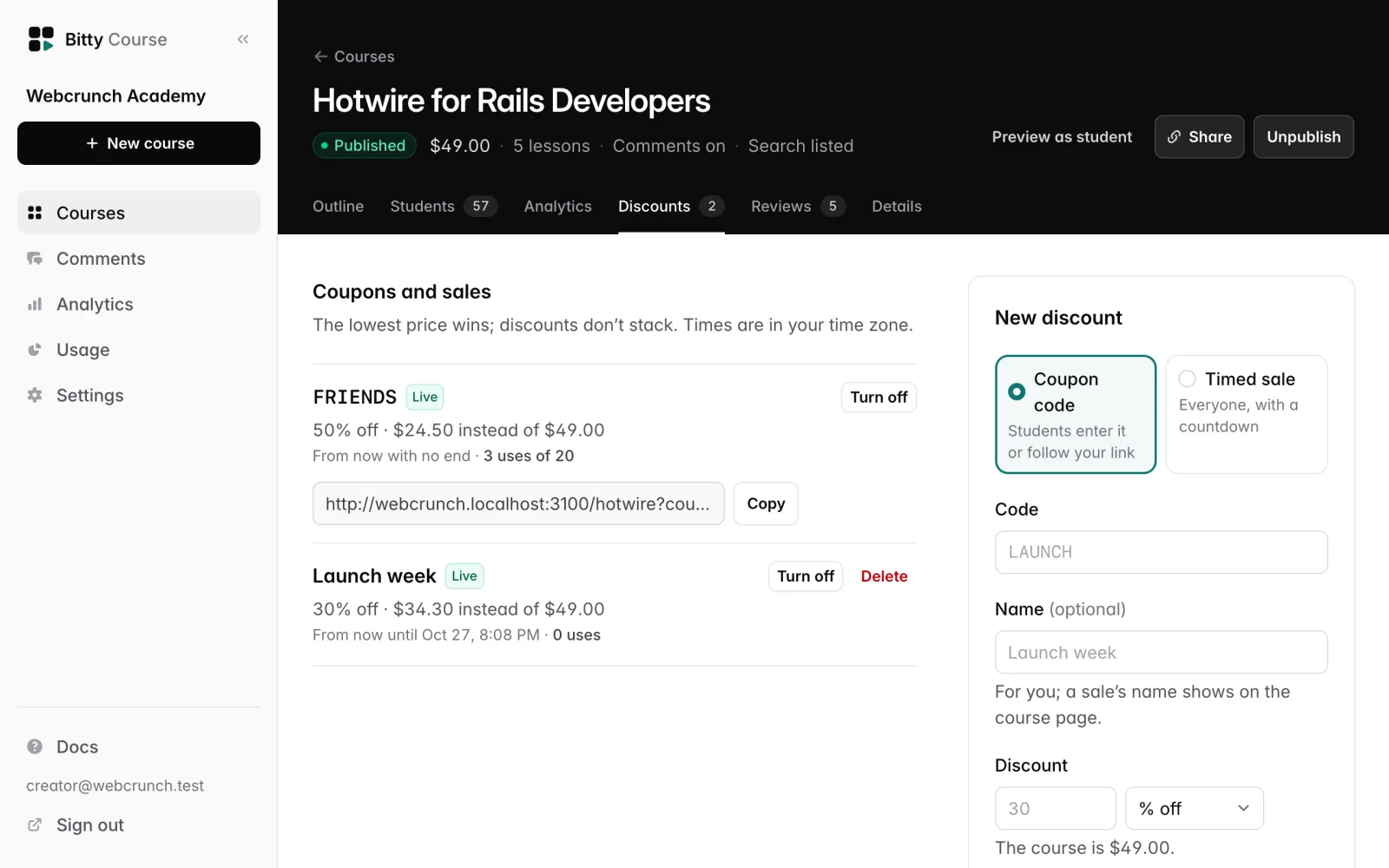
Coupon codes and timed sales
| Difference | Coupon code | Timed sale |
|---|---|---|
| Who gets it | Students who enter the code or follow your link | Everyone who visits the course page |
| Needs a code | Yes | No |
| End date | Optional | Required (it's what the countdown counts to) |
| Usage limit | Optional | Not available |
| Can make the course free | Yes, with 100% off | No |
| Name | Optional, for you only | Optional, shown on the course page (defaults to "Sale") |
Discounts work on Paid courses only. On a free or invite-only course, the Discounts tab says discounts apply to paid courses.
Create a discount
- Open the course and click the Discounts tab.
- Under New discount, choose Coupon code or Timed sale.
- For a coupon, enter the Code (for example
LAUNCH). - Optionally enter a Name (for example "Launch week").
- Under Discount, enter a number and choose % off or [currency] off (for example USD off).
- Optionally set Starts and Ends. Leave Starts empty to start now. A sale needs Ends.
- For a coupon, optionally set a Limit: how many students can use the code.
- Click Create discount.
Rules:
- Codes use 3–30 letters, numbers,
-or_. They are not case-sensitive (stored in capitals) and must be unique within the course. - Choose a percentage or an amount off, not both. Percentages are whole numbers from 1 to 100.
- The discounted price must be 0 (a 100% coupon) or at least 0.50 in the course's currency, the smallest payment card processors accept. The form checks this against the course's current price. If you later change the price so a discount no longer fits, it stops applying and shows Doesn't fit the price (see below).
- A sale can't make the course free. Use a 100% coupon, or make the course free.
- Ends must be after Starts.
- You enter Starts and Ends in your local time, and the discount list shows them in your local time too.
Lowest price wins, no stacking
Discounts never stack. When a sale is running and a student also has a valid coupon, the student pays whichever price is lower. If both give the same price, the coupon is used, so its code is honored and counted. If several sales overlap, the lowest price applies.
Coupon links
On a published course, each coupon shows a Link with [CODE] applied. Copy it and share it. It's your course link with ?coupon=CODE on the end.
- Students who open the link see the discounted price with "Code [CODE] applied".
- The code is remembered on that browser for this course for 30 days, including through sign-in on the way to checkout.
- Students can also click Have a coupon? on the course page, type the code and click Apply. Remove code takes it off.
- An invalid code shows a message and isn't kept: "That code isn't valid for this course.", "That code isn't active yet.", "That code has expired.", "That code has been used up." or "That code can't be used at the course's current price."
100% coupons
A 100% coupon gives free access without a checkout. The course page shows Free, and the button reads Get free access. The student signs in, clicks it, and is enrolled ("You're in! The code gave you free access."). This counts as one use of the code. The student's source shows as Coupon.
Stripe must still be connected and accepting payments, because the buy button only appears when sales are open.
The countdown
When the discount on the course page has an end less than 30 days away, the purchase card shows a countdown:
- For a sale: "Price goes up in …"
- For a coupon: "Code ends in …"
A sale's Name (or "Sale") appears above the price with the discount, for example "Launch week · 30% off".
Usage limits
A coupon's Limit caps how many students can use it. A use counts when a payment is confirmed or a 100% coupon is claimed. While a student is in checkout, their checkout holds one use, so a limited code can't be oversold; the hold is released if the checkout expires. When all uses are taken, the code shows Used up and students see "That code has been used up."
A full refund gives the use back, so a limited code can be used by someone else.
Turn a discount off, or delete it
On the Discounts tab or the discount's own page:
- Turn off stops the discount applying. Open checkouts keep the price they started with. Turn on brings it back.
- Delete appears only for discounts nobody has used. A discount that has been used can only be turned off, so past orders keep their terms.
You can't edit a discount's amount, dates or limit after creating it. Turn it off and create a new one.
Discount status
Each discount shows one badge:
| Badge | Meaning |
|---|---|
| Live | On, started, not ended, uses left |
| Scheduled | Starts later |
| Ended | Its end time has passed |
| Used up | No uses left |
| Doesn't fit the price | The course price changed and this discount would now leave less than the minimum charge (or make a sale free). It doesn't apply. Turn it off and create one that fits; it can't be turned back on at this price |
| Off | Turned off |
The Discounts tab label shows how many discounts are currently on and within their dates.
The discount detail page
Click a discount's code or name to open its page. It shows:
- Uses — uses so far, of the limit if there is one, and how many are left.
- Revenue — what students paid with this discount, excluding refunded purchases, with the number of sales and refunds.
- Students saved — the total saved against the list price, on paid purchases.
- In checkout now — checkouts currently open with this discount. Each holds a use until it finishes or expires.
- Who used it — each student with the date and what they paid (or Free for a 100% coupon). Refunded purchases stay listed with a Refunded badge. Click a student to open their student page.
Uses appear here once a payment is confirmed or a student claims a 100% coupon.
Who can do what
- Owners: create, turn on, turn off and delete discounts.
- Editors: see the list and each discount's page, but not the New discount form or the buttons.
- While the workspace is read-only after canceling, nobody can create or change discounts.
Limits
- Paid courses only.
- One discount per purchase; discounts don't stack.
- No editing after creation.
- Usage limits are for coupons only.
- No discounts across several courses at once; each discount belongs to one course.