Build your course
Comments
Let enrolled students ask questions under each lesson, reply as the creator, and hide, delete or turn off comments.
Lesson comments let enrolled students ask questions and reply to each other under each lesson. They are asynchronous: there is no live chat, and you answer when it suits you. Comments are off for new courses until you turn them on.
Turn comments on or off
- Open the course's Details tab.
- Under Discussion, search and embedding, tick or untick Allow lesson comments.
- Click Save course.
The setting applies to every lesson in the course. The course page band shows Comments on or Comments off.
Turning comments off hides them from students and stops new posts. Nothing is deleted: turn comments back on and every thread returns as it was. While comments are off, you can still read and moderate existing comments in the studio.
You can't turn comments on or off for a single lesson.
Who can read and post
- Enrolled students of a published course can read and post.
- Members of your workspace (owners and editors) can read everything and reply.
- Free previews don't open the discussion. Visitors on a free-preview lesson don't see its comments.
- Revoking a student's access removes their access to comments too.
Students must be signed in to post. Quizzes have no comments.
What students see
On a lesson, comments appear on the Q&A tab, with a count of comments. Students can:
- Post a question or note about the lesson.
- Link to a moment in the video. The button adds the video's current time (for example 04:12) to the comment. Others click the time to play the video from there.
- Reply to a comment. Replies are one level deep; you can't reply to a reply.
- Delete their own comments. A deleted comment shows "This comment was deleted." in its place, and any replies stay. A deleted reply disappears.
- Report someone else's comment to you. They see "Thanks — the creator will review it." Each student can report a comment once.
Replies from you and your team show a Creator badge.
Timestamps after you replace a video
A timestamp belongs to the exact video version it was written against. It is never moved to match a new video.
When you publish a new version of a lesson's video (see Video versions):
- Older timestamps are labeled Earlier video (v1). Clicking one plays the earlier version from that moment, while that version is still kept.
- Once the earlier version is removed, the comment shows Refers to an earlier video that's no longer available, and the time is no longer clickable.
Reply and moderate
To open a lesson's comments:
- Open the lesson's editor (click the lesson title on the Outline tab).
- Click Comments. The number in brackets is the lesson's comment count.
The Comments button appears when comments are on for the course, or when the lesson already has comments.
The page shows whether comments are On for this course or Off — hidden from students, nothing deleted, and lists every thread, oldest first. Each comment shows the student's name and email address, when it was posted, its timestamp (if any), and a red reports badge if students reported it.
Reply. Type in Reply… under a thread and click Reply. Your reply shows the Creator badge to students.
Hide. Click Hide to remove a comment from students' view without deleting it. Hiding a top-level comment hides its whole thread, replies included. The comment stays on your Comments page with a Hidden badge, and students can no longer reply to it. Click Unhide to restore it.
Delete. Click Delete and confirm to remove a comment permanently, together with its replies. This can't be undone. Use Hide if you might want it back.
Owners and editors can both reply and moderate.
Everything waiting for you
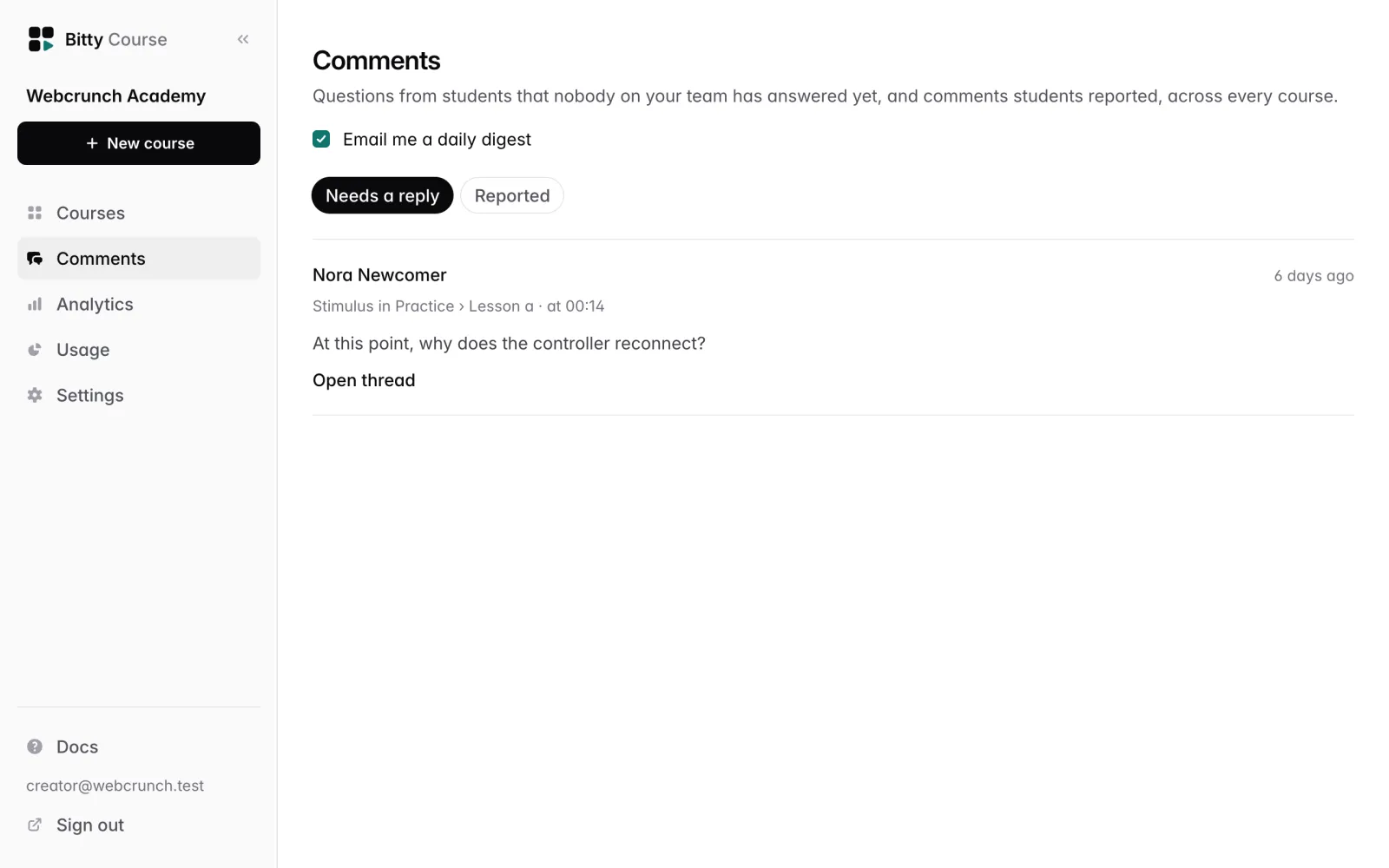
Comments in the studio sidebar lists, across every course:
- Needs a reply: students' questions (top-level comments) that nobody on your team has replied to yet, newest first. A reply from any owner or editor takes a question off the list.
- Reported: visible comments that students reported, with the number of reports.
Click Open thread to reply, hide or delete on the lesson's Comments page. Hidden and deleted comments don't appear in either list.
Daily email
Each owner and editor gets a daily email when students asked new questions or reported comments since their last one. Days with nothing new send nothing, and you get at most one a day.
To turn it off, uncheck Email me a daily digest on the Comments page, or click Stop these emails in the email. The setting is yours alone; it doesn't change anyone else's. Students don't get emails about replies.
Limits
| Item | Limit |
|---|---|
| Comment length | 5,000 characters |
| Links per comment | 2 |
| Reply depth | One level |
| Posting rate per student | 5 per minute, 20 per hour |
Posting the same text twice on a lesson within a minute is treated as a double submit; the second copy isn't added.
Good to know
- Comment text is shown as plain text. Formatting and HTML aren't supported.
- Deleting a lesson or course deletes its comments.
- Students can't edit a comment after posting. They can delete it and post again.