Workspace
Plans and usage
What the Free, Starter and Plus plans include, how usage is measured and warned about, what pauses at a limit, and how changing plans and canceling work.
Each workspace is on one Bitty Course plan: Free, Starter or Plus. The plan sets the platform fee on course sales and your allowances for video storage, viewing and lesson files. See your plan under Settings → Plan & billing and your current usage under Usage in the sidebar.
Plans
| Free | Starter | Plus | |
|---|---|---|---|
| Price | $0 / month | $29 / month | $49 / month |
| Bitty Course's share of course sales | 10% | None | None |
| Published courses | 1 | Unlimited | Unlimited |
| Stored video (revisions included) | 2 hours | 20 hours | 40 hours |
| Viewing hours per month | 50 | 250 | 500 |
| Lesson files (attachments) | 256 MB | 2 GB | 4 GB |
| Automatic AI captions | Included | Included | Included |
| Custom domain | No (hosted address only) | Yes | Yes |
| "Course hosting by Bitty Course" credit | Always on | Optional | Optional |
| Draft with AI, per month | 5 drafts | 100 drafts | 300 drafts |
| AI dubbing add-on | No | No | Available, billed by use |
New workspaces start on Free.
- The platform fee is on top of Stripe's processing fees. See Getting paid.
- Free can have one published course. Publishing a second shows "Your plan includes 1 published course. Unpublish one or upgrade to publish this". You can keep any number of draft courses.
- On Free, your courses are on your course subdomain; custom domains need Starter or Plus. See Custom domains.
- On Free, the "Course hosting by Bitty Course" credit in your course site footer and emails can't be turned off. On paid plans, turn it off under Settings → Course site. See Branding.
- Caption translations and AI dubbing are add-ons billed by use, up to a monthly cap you set. See Captions and translations and AI dubbing. Draft with AI is covered in Draft with AI.
The Usage page
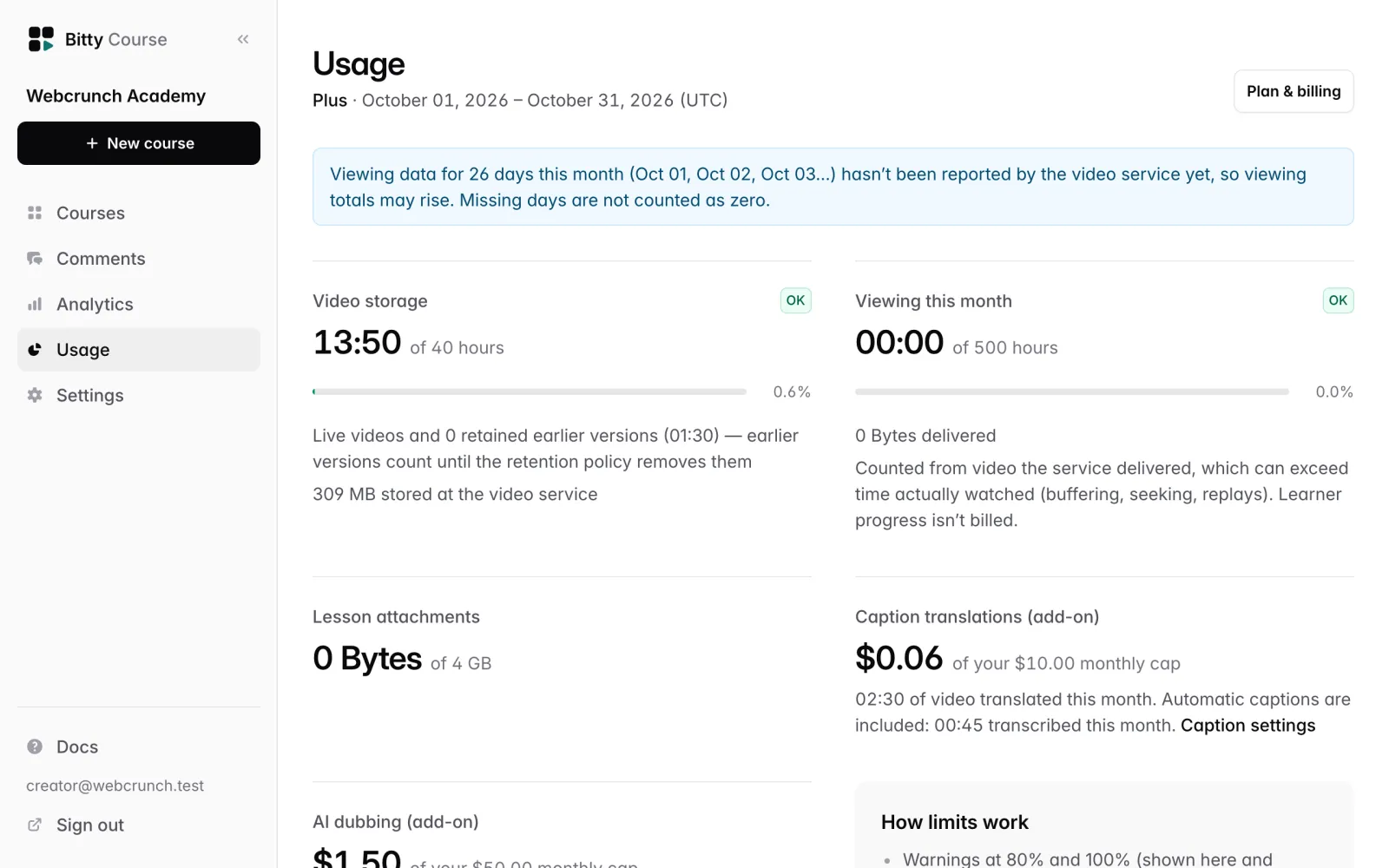
Click Usage in the sidebar. It shows the current month (UTC calendar month) for your plan:
- Video storage — hours of video stored, against your plan's stored hours. This counts live videos, earlier versions still being kept, and space reserved for uploads in progress. An upload in progress reserves 30 minutes per GB until its length is known. See Video versions for how long earlier versions are kept.
- Viewing this month — hours of video delivered to viewers, against your plan's viewing hours. It's counted from what the video service delivered, which can be more than time actually watched (buffering, seeking, replays). Learner progress isn't used. If the video service hasn't reported some days yet, the page says so; those days aren't counted as zero, so the total may rise.
- Lesson attachments — storage used by lesson files, against your plan's allowance.
- Caption translations (add-on) and, on Plus, AI dubbing (add-on) — spend this month against your cap.
Each meter has a badge: OK, Nearing limit, Limit reached, Grace or Paused.
Warnings
- At 80% and at 100% of video storage or viewing, you get a warning on the Usage page, a banner across the studio, and an email to every workspace owner.
- Each warning email is sent at most once per kind per month.
- Viewing sends one more email if playback pauses.
What happens at a limit
There are never automatic overage charges. When you reach a limit, things pause and you're told.
Video storage full (100%)
- New uploads are paused: "Your plan's video storage … is full. Delete unused versions or lessons, or change plan, to upload more."
- Nothing is deleted. Existing videos keep playing.
- Free space by deleting unused versions or lessons, or change plan.
Viewing over the allowance
- From 100% to 110% of your viewing hours (the grace band), playback continues.
- Beyond 110%, new playback for students pauses until the start of next month (UTC), or until you change plan. Students see "Playback is temporarily paused for this course. The creator has been notified."
- You and your team can still play videos in the studio and on the course site.
Lesson file storage
- Lesson files can't go over your plan's allowance. An upload that would is refused with a message; remove files you no longer need or upgrade.
Change plan
To upgrade or downgrade:
- Go to Settings → Plan & billing.
- On the plan you want, click Switch to [plan].
- Only owners can change plan.
- From Free to a paid plan: you go to a Stripe checkout page to enter a card. Paid plans are billed monthly in advance. The new plan starts as soon as Stripe confirms the payment, usually within seconds of returning to Bitty Course.
- Between Starter and Plus: the change happens straight away, and Stripe adjusts your next invoice for the part of the month already paid.
- From a paid plan to Free: you keep the paid plan until the end of the month you've paid for, then move to Free. The page shows the date. Choosing a paid plan before then keeps it.
- Upgrades give higher allowances, no platform fee on new sales, and paused uploads or playback can resume.
- Billing details and invoices on the same page opens Stripe's billing page, where you can change your card and download invoices and receipts.
- If a payment fails, the page says so. Stripe retries the payment for a while; update your card to keep the plan. If it can't be collected, the workspace moves to Free.
- Moving to a plan that allows less waits until your workspace fits. For example, moving to Free first needs: "Unpublish courses until 1 is published" and "Remove your custom domains". The button is disabled and the page lists what to do first.
- Bitty Course never deletes or unpublishes anything to fit a smaller plan; you decide what to remove.
- The platform fee for a sale is decided when the student starts checkout.
Cancel your subscription
To cancel:
- Go to Settings → Plan & billing.
- Under Cancel subscription, click Cancel subscription and confirm.
After canceling:
- For 30 days, the workspace is read-only. Enrolled students keep watching. New purchases and enrollments stop, and course pages show Enrollment closed. A banner says "Subscription canceled. Your courses stay available to enrolled students until [date]; editing is paused."
- While read-only, you can't create or edit courses, lessons or settings, upload, publish, create or change discounts, add students, add custom domains, connect Stripe or change plan. You can still view everything, download your export, unpublish courses, remove or restore a student's access, issue refunds, and reply to and moderate comments.
- After 30 days, the workspace is suspended and your course pages go offline. Visitors see "These courses are currently unavailable" and are asked to contact you if they bought a course.
- "Lifetime access" you sold to students depends on an active workspace. Let students know before your grace period ends.
Owners can download the workspace's data with Download export under Export on the same page. See Settings and export.
To undo, click Reactivate on Settings → Plan & billing. Editing comes back straight away.
Only owners can cancel or reactivate.
Good to know
- Usage periods are UTC calendar months.
- Usage shows for the whole workspace, across all courses.
- Upgrading never requires removing anything; downgrading may.